The Unlocked: Customize HDR Brightness & APL on the MSI MPG 341CQR QD-OLED X36
Monitors
The wait is finally over! Following the successful launch of MSI’s MEG, MPG, and MAG 34" QD-OLED monitors in 2023 and 2024, we are proud to introduce the all-new generation of Ultrawide QD-OLED monitors: the MPG 341CQR QD-OLED X36.
Beyond significant hardware upgrades, MSI continues to innovate the software experience. We are bringing you even more robust customization features, empowering you to craft a display setup that is uniquely yours. With the MPG 341CQR QD-OLED X36, you command unprecedented control over your display. Not only can you fine-tune Gamma and Six-Axis Color, but more notably, you now have the ability to customize HDR brightness levels.
In the following sections, we will walk you through exactly how to tweak these settings and demonstrate the profound impact they will have on your visual experience.
HDR Brightness
In the past, when you turned on HDR, any setting like brightness, contrast, color temperature, etc. They all could not be adjusted by yourself. We have now unlocked this capability. You have the freedom to adjust the overall screen brightness while still in HDR mode, allowing you to tailor the luminance to perfectly match your environment and needs.
Uniform Luminance - Customize Your HDR
In addition to adjusting the overall screen brightness directly in HDR mode, you can utilize the Uniform Luminance feature to achieve a highly customized HDR curve tailored to your preferences. This allows for more amazing brightness experience, giving you precise control over your visual output. You can adjust HDR brightness and customize your brightness by APL(Average Picture Level).
We are using the MPG 341CQR QD-OLED X36 to demonstrate how Uniform Luminance works, but this feature is available on other new QD-OLED monitors as well. Please note that function names and OSD interfaces may vary by model. Actual features are subject to the specific monitor.
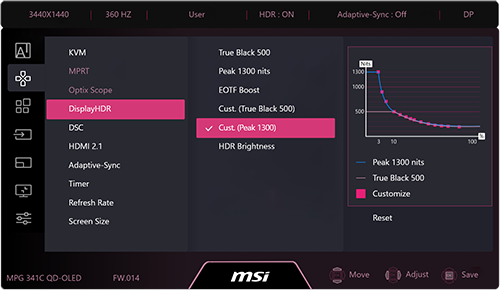
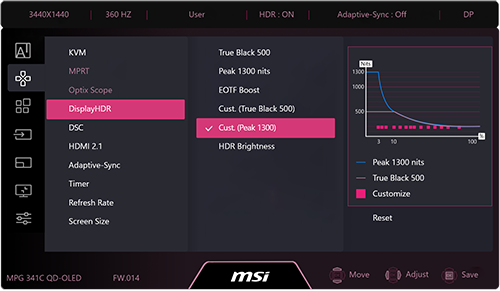
You can see two new options Cust. (True Black 500) and (Peak 1300)in OSD Menu.
Cust. (True Black 500) / (Peak 1300)
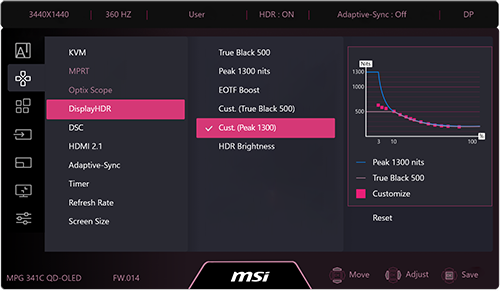
This is a debut feature introduced on the MPG 341CQR QD-OLED X36. Whether you are using True Black 500 or Peak 1300 mode, you now have the freedom to adjust the maximum brightness levels across various APLs. By default, the display utilizes MSI's original factory values for True Black 500 and Peak 1300 nits.
Within these two modes, we provide as many as 14 distinct adjustment points, each corresponding to a different APL ratio. Operating within the panel’s power consumption limits, users are free to customize their desired maximum brightness output.
How to Make Cust. (True Black 500) / (Peak 1300) Working?
The adjustment process is very simple and intuitive. Enter the OSD Menu and follow this path to begin your custom calibration:
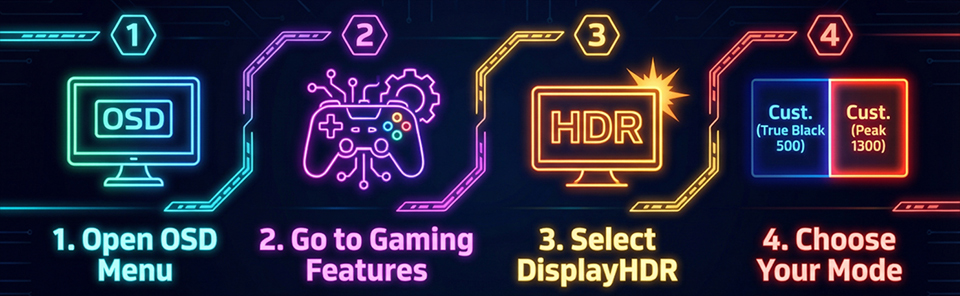
Upon entering the Cust. Peak 1300 mode, you will see a brightness curve diagram in the OSD Menu. This graph features a total of 14 Customize Points.
You can use the monitor’s Five-way Joystick located beneath the screen to adjust the brightness of the selected point (the default setting is maximum brightness). If you select the Cust. True Black 500 mode, you will instead be adjusting Customize Points on True Black 500 curved indicating a differentiated adjustment curve.
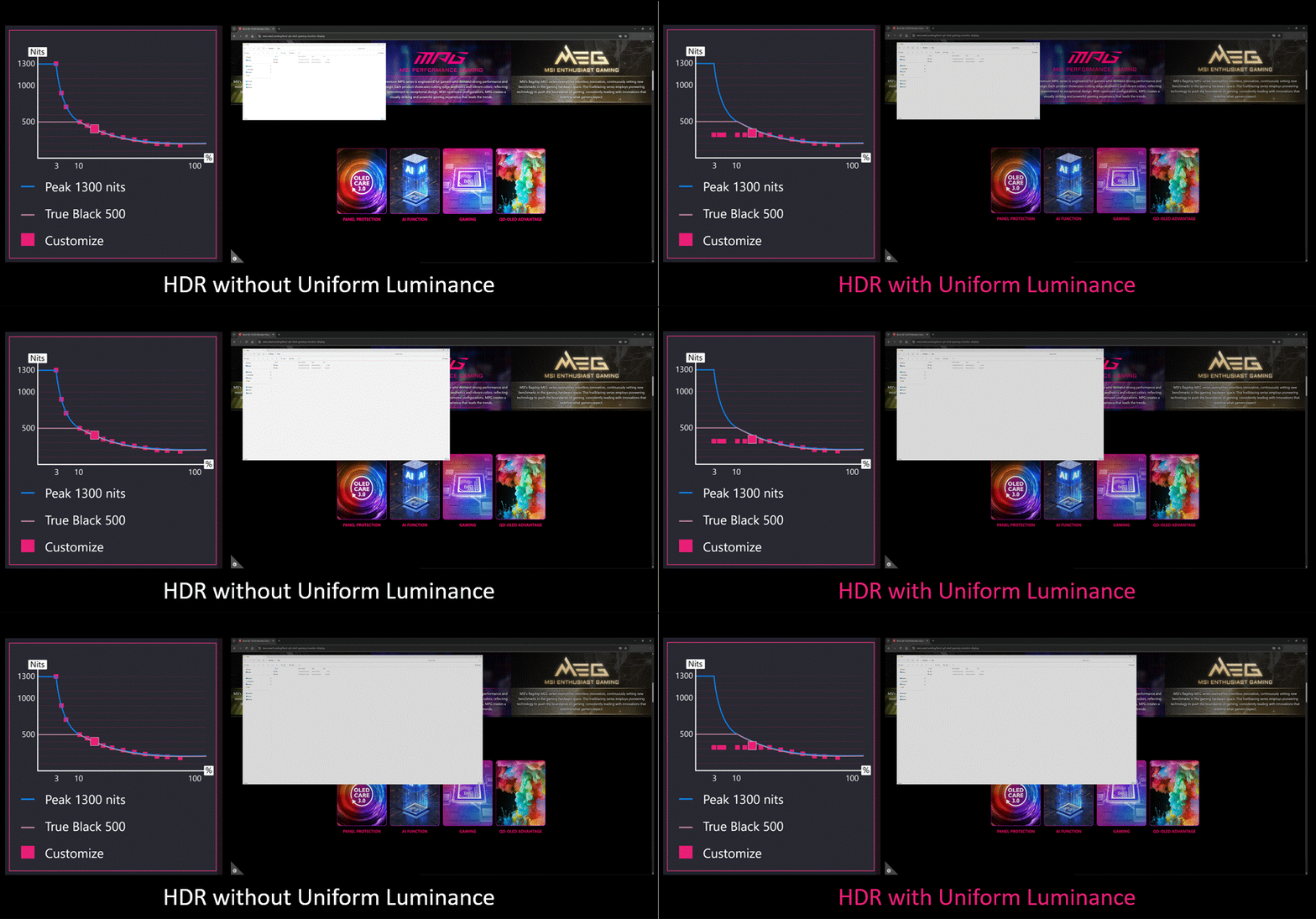
The impact of MSI's Uniform Luminance is immediately visible when browsing the web in HDR mode. On the left, the default setting shows brightness decreasing as white areas expand (increasing APL). In contrast, the image on the right maintains a consistent luminance level. With MSI’s exclusive Uniform Luminance, you can customize the brightness curve to create a personalized OLED experience.
To provide a clearer comparison, we captured actual footage across different brightness settings. We have outlined three distinct scenarios: To achieve maximum contrast, the default setting reaches peak brightness at 3% APL, with a gradual roll-off as APL increases. For users preferring minor visual fluctuation, the second scenario features a smoother brightness curve. Finally, the third scenario maintains a constant brightness mode, ensuring a stable visual experience regardless of screen content.
Default Peak 1300
Cust. Peak 1300
Cust. Peak 1300 (Lowest)
Sudden Brightness Drop
Smooth Brightness Transition
Brightness Remains Consistent
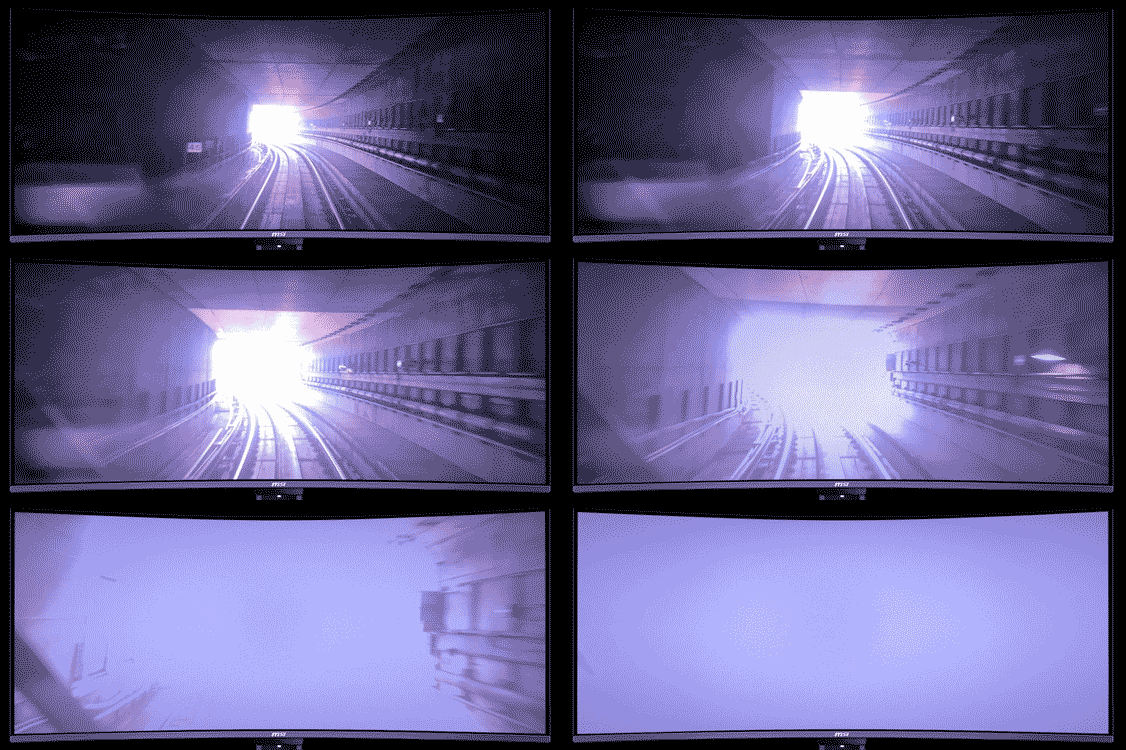
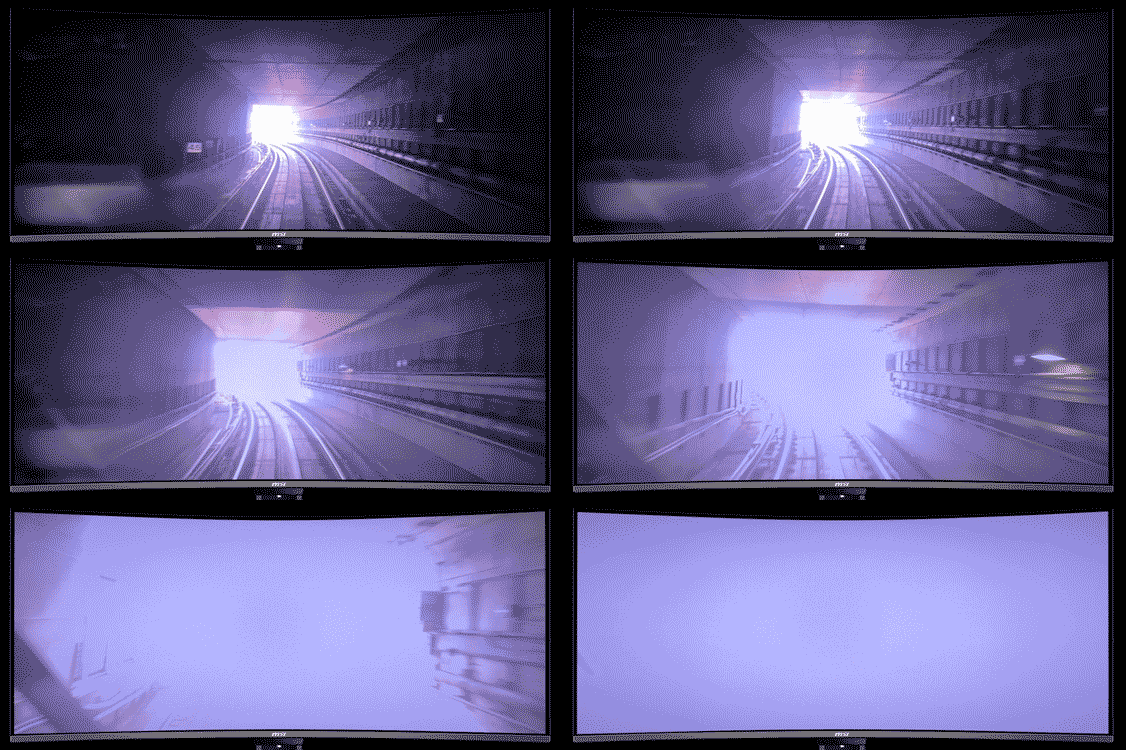
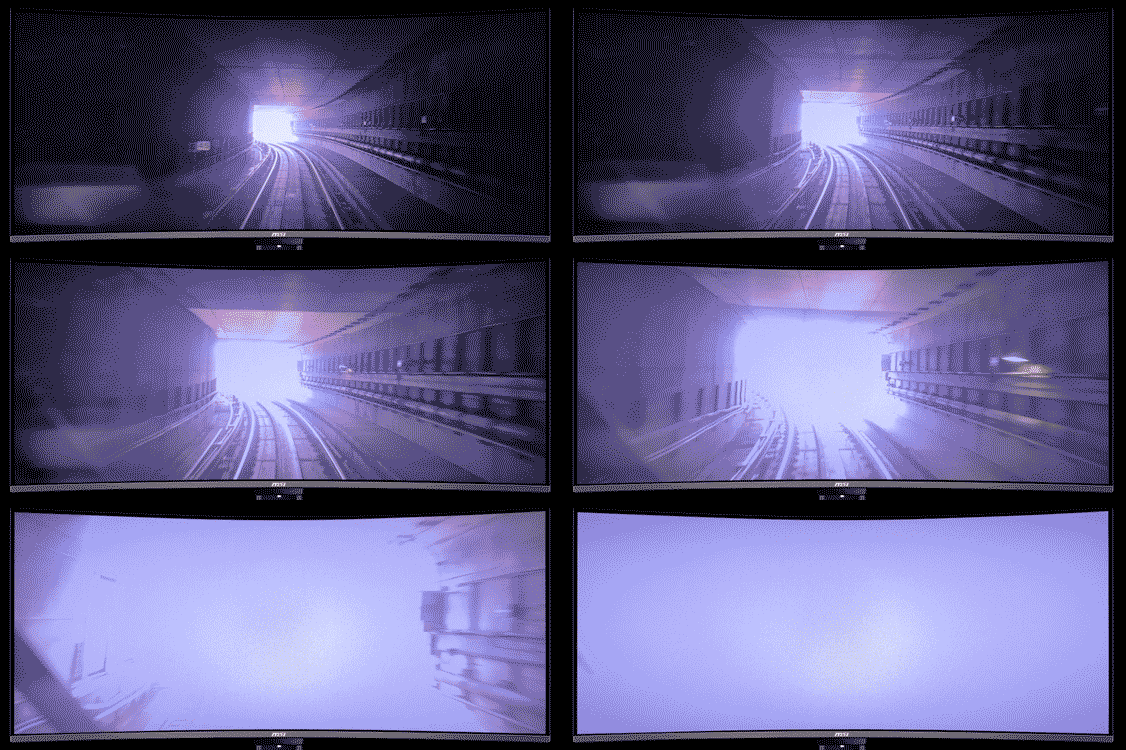
*Screen images simulated. Recorded footage may not accurately reflect actual brightness or color performance due to camera limitations.
Why Custom HDR on OLED Monitors? The Pain Point and Solution
We firmly believe that every user possesses unique visual perspectives and habits, especially those who demand a high degree of customization.
Consider high-contrast, extremely dark games or movies, such as horror titles. A common scenario involves the protagonist exploring a pitch-black environment with a single, high-intensity light source, like a torch. If the torch's peak brightness is too intense for extended sessions, reducing the monitor's overall brightness may alleviate immediate discomfort. However, the picture becomes too dim once the scene shifts.
these high-contrast (low APL) scenes, enabling you to achieve the perfect balance between visual comfort and immersion without compromising the brightness balance of other scenes.
Gamma and Six- Axis Color
Beyond adding extensive adjustment options to HDR mode, we have also significantly enhanced color control in SDR mode.
- Gamma Adjustment: You can select your preferred Gamma standard curve based on personal habit or professional requirement, ensuring the accurate presentation of grayscale transitions and shadow details.
- Six-Axis Color: This is a key enhancement. In addition to the primary colors of light, R(Red), G(Green), and B(Blue), we have further included C(Cyan), M(Magenta), and Y(Yellow). This empowers you to execute unprecedented micro-adjustments across all six axes of color, achieving the deepest level of color customization.
The following QD-OLED monitors support Uniform Luminance for HDR curve customization:
https://www.msi.com/Monitor/MPG-341CQR-QD-OLED-X36
https://www.msi.com/Monitor/MAG-322UP-QD-OLED-X24
https://www.msi.com/Monitor/MPG-341CQR-QD-OLED-X36
https://www.msi.com/Monitor/MAG-322UP-QD-OLED-X24
Q&A:
Q1: Why can't the brightness be adjusted above the curve?
A1: The curve itself serves as both the default setting and the maximum brightness. Due to inherent panel power consumption limitations, when customizing points are on the curve, they are restricted to downward adjustment only.
Q2: How to recover the setting of Cust. (True Black 500) / (Peak 1300)?
A2: To return to the default value following an unsatisfactory adjustment, you may either use the 5-way key to move the points back onto the curve or reset all settings via OSD Menu > General > Reset All; however, all configurations will be affected.
Q3: Could I adjust Cust. (True Black 500) / (Peak 1300) on Gaming Intelligence?
A3: Yes. In addition, the Gaming Intelligence AI Menu can be associated with your preferred games, enabling you to automatically apply distinct settings profiles for each game title.
Q4: Are Six-Axis Color and Gamma restricted to SDR mode?
A4: Yes.
Q5: What is the adjustable range for the 14 custom points of APL levels?
A5: The range is 3% to 75%.