What is a Motherboard?
Motherboards
Quick Answer (TL;DR): A motherboard is a large Printed Circuit Board (PCB) in your computer that connects several different components and allows them to communicate with each other. It serves as the foundation for your PC and its choice affects a range of functionality and connectivity.
If you’re building your first PC for gaming or creative work, chances are, you’re probably running into terms like "chipsets," "CPU sockets," and "motherboards" everywhere.
As we break down PC parts piece-by-piece in this series, the motherboard is the perfect starting point. It’s the physical foundation of your entire build, and all the parts you buy will eventually plug directly into it.
On a sidenote, if you prefer a video guide instead, you can find a beginner’s guide with every single component explained here.
What Does a Motherboard Do?
It’s easy to look at a motherboard and just see a complicated mess of incomprehensible electronics. However, every part of the motherboard works in tandem to provide 3 key functions: Power delivery, data routing and traffic, and system initialization.
For this next part, we’ll be using the MEG X870E ACE MAX Motherboard as an example.
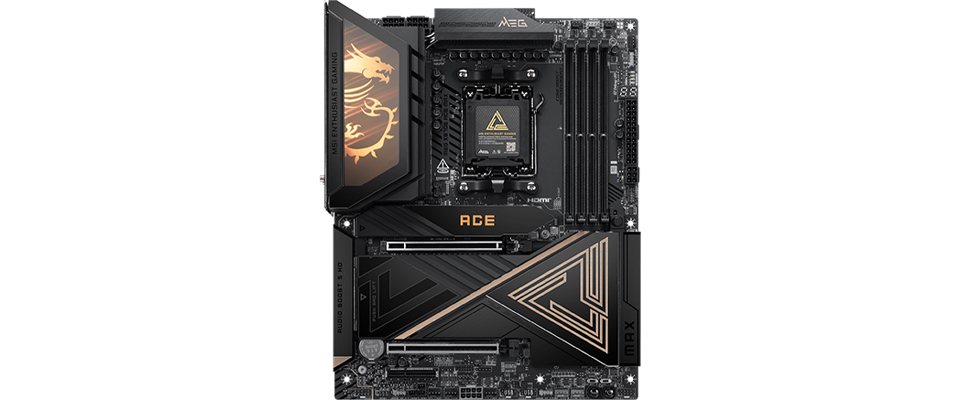
Power Delivery and Regulation (VRMs)
Your power supply feeds 12 volts to the motherboard, which if delivered directly would instantly ‘fry’ a desktop CPU. The motherboard acts as an intermediary for power to several of your PC components, including your RAM and CPU, making sure that they get clean, reliable, and safe power.
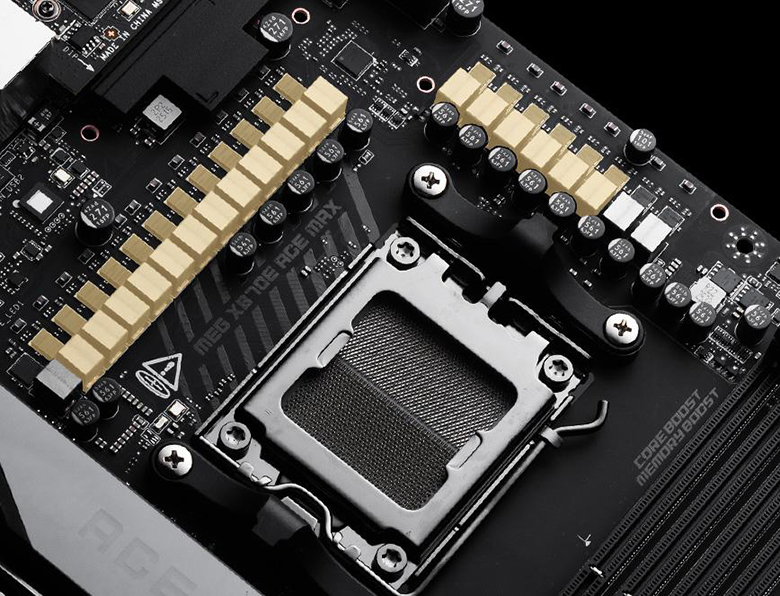
See those components surrounding the CPU socket on the MEG X870E ACE MAX motherboard above? These are a cluster of Voltage Regulator Modules (VRMs) that handle power delivery to your processor and memory modules.
Data Routing and Traffic Control
The motherboard also acts as a transit system for your data. It provides PCIe lanes, which act as lightning-fast expressways that enable real-time communication between your CPU, RAM, and graphics card. Meanwhile, the Chipset handles and redirects slower data from your USB ports and Wi-Fi so they don't bottleneck your system.
System Initialization (BIOS/UEFI)
Before Windows even loads, the motherboard’s built-in firmware (the BIOS or UEFI) wakes up. When you press the power button, it tests every connected component to ensure they are alive and functioning properly. This is also the hidden dashboard where you enable memory or system performance profiles or manually tweak BIOS settings. You can find a video tutorial for the MSI Click BIOS X here.
What are the Key Components on a Motherboard?
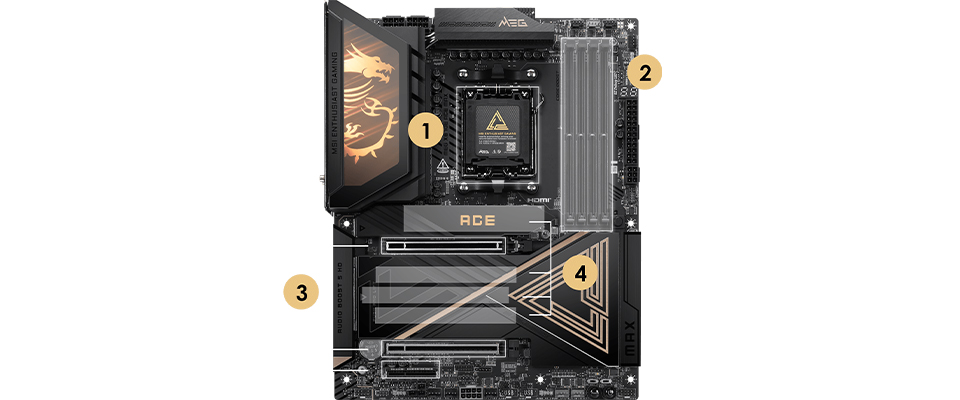
Taking a bare motherboard out of the box can look intimidating with its maze of heatsinks and exposed pins, but figuring out where your components actually go is surprisingly straightforward.
To help you navigate, we’ve taken a MEG X870E ACE MAX motherboard below and labeled its most critical parts. As we break down the anatomy of the board below, use these numbers as your map to see exactly where your processor, memory, and graphics card will live.
What is a CPU Socket?
The socket is labelled with the number ‘1’ on the image of our MEG X870E ACE MAX motherboard above. That’s where your processor (CPU) goes!
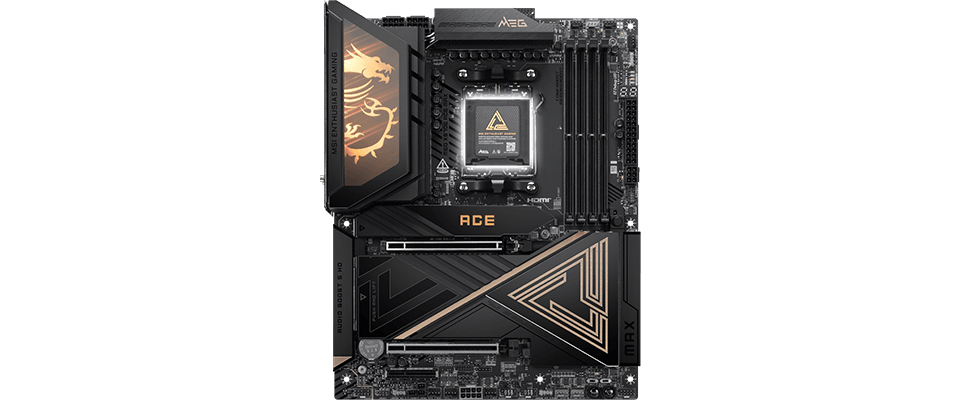
From a technical standpoint, the CPU socket refers to the mechanical and electrical interface where your processor connects to the motherboard. Instead of soldering the chip permanently to the board, the socket uses a massive grid of hundreds (often thousands) of microscopic metal pins or contact pads.
These pins perfectly align with the bottom of your CPU, acting as a gateway to instantly route power, data, and instructions to and from the "brain" of your PC to your graphics card, memory, and storage. The socket is also what allows you to easily drop in a new (compatible) processor when you’re due for an upgrade.
What are RAM Slots?
Located directly next to the CPU socket (number 2), these long vertical slots hold your Random Access Memory (RAM) modules – basically your PC’s high-speed, temporary workspace.
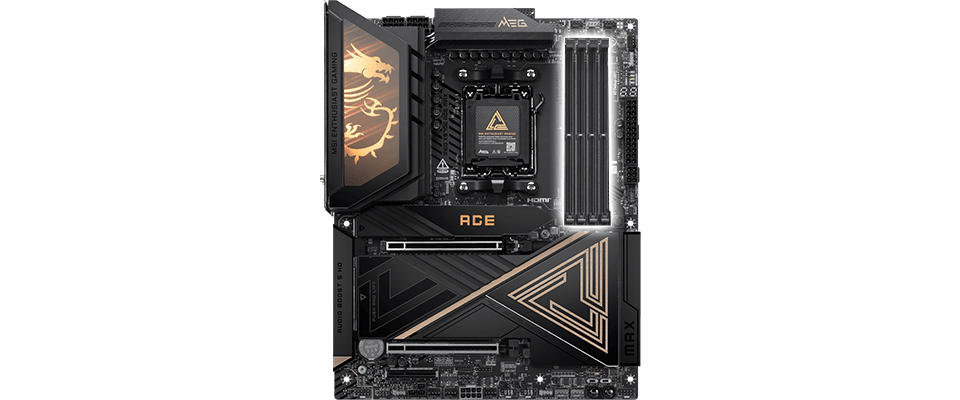
The processor needs a temporary storage to hold the data it is actively using, like game files for a game you’re currently playing or video info for the 4K video timeline you’re scrubbing through. These RAM or memory slots provide a high-bandwidth, low-latency electrical path for the memory to connect directly to your CPU.
Most consumer motherboards feature four of these slots in a "dual-channel" configuration – letting your CPU access memory via two channels or paths. This ensures that your CPU spends less time waiting for the files it needs.
PCIe Slots and Expansion
If you look directly below the CPU socket and RAM slots, you’ll see long horizontal slots. On this MEG X870E ACE MAX motherboard, for example, there are 3 slots (labeled with the number 3). These are the PCIe slots on your motherboard.
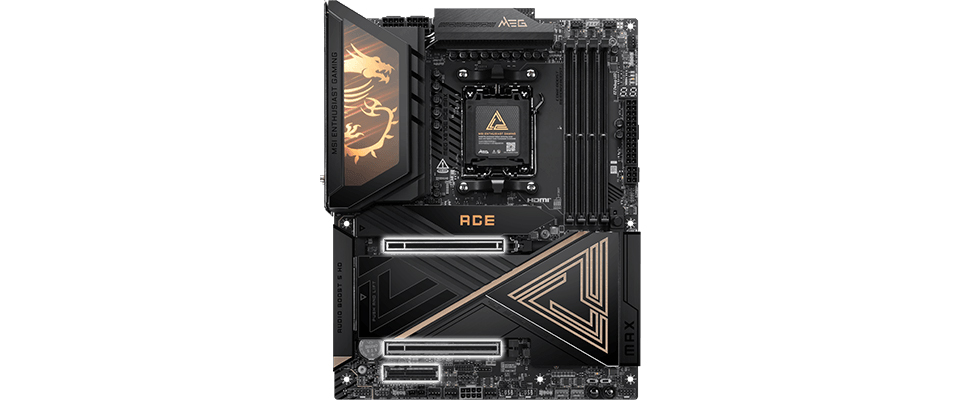
A PCIe slot is a high-speed connection interface that allows you to add expansion cards to your PC. This slot is where you’ll be plugging in components like your graphics card, an M.2 expansion card, etc.
For faster devices like modern GPUs and other expansion cards, you’ll want at least two slots on your motherboard.
Storage Connectors: NVMe M.2, SATA, and More
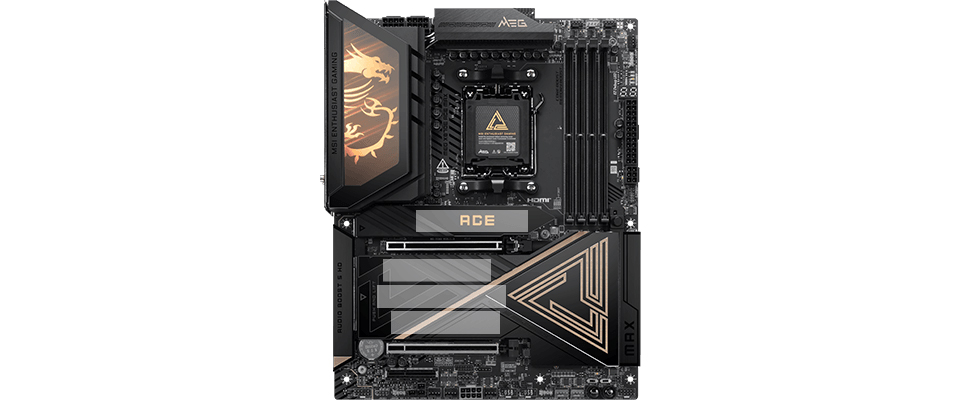
While PCIe slots offer high-speed access to expansion cards, not all devices need such high speeds and fast access. Slots and ports like M.2 and SATA are generally used to connect your storage drives, such as NVMe SSDs (Solid State Drives) or HDDs (Hard Disk Drives).
SATA ports require a SATA cable that connects from the motherboard to the storage drive.
M.2 slots, on the other hand, require you to use a high-speed storage in an M.2 form factor. These drives plug directly into your motherboard’s M.2 slot . But for motherboard-specific instructions, be sure to read your manual.
The Rear I/O Panel: Connecting Your Devices
While most of your components go inside your PC, your peripherals need to be outside – and they connect to the motherboard using its rear I/O. The rear I/O is the outward-facing panel on your motherboard that houses ports, switches, buttons, and even Wi-Fi and Bluetooth antennae.
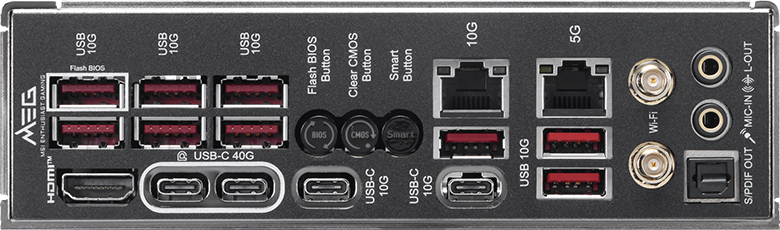
For most gaming motherboards, you should look for next-gen wired and wireless networking (2.5G LAN + Wi-Fi 6 or better) in addition to fast, next-gen USB ports. And if you need access to connectivity like Thunderbolt, again, the rear I/O of the motherboard is usually where you’ll find it.
What are Motherboard Form Factors?
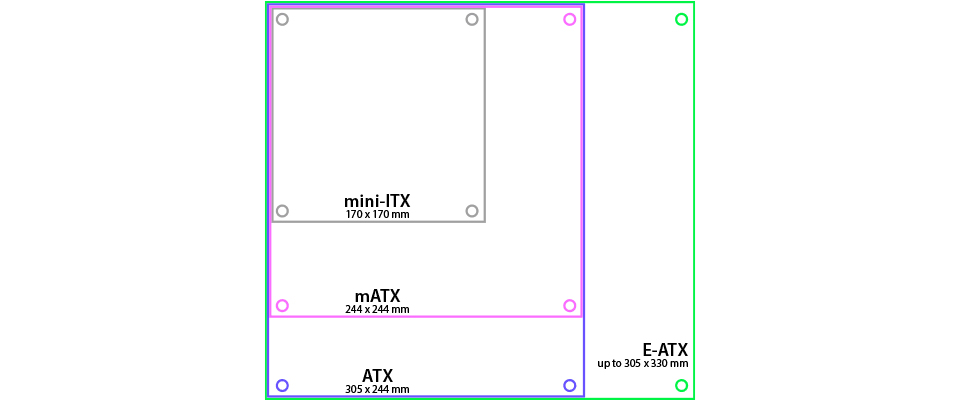
Although motherboard sizes can vary, they’re all designed according to the ATX standard. This standard dictates specifics, such as physical dimensions, mounting hole placements, and power supply interfaces to ensure compatibility with dependent components like PC cases.
Because of this shared standard, you enjoy the flexibility of picking from a variety of form factors, ranging from large to compact sizes. The main trade-off is that larger motherboards will typically feature more ports, storage connections, and PCIe slots compared to their more compact siblings.
As of 2026, there are 4 popular form factors for motherboards in the consumer market. In the diagram below, each colored outline showcases the size for each of these form factors.
ATX
The most common form factor is ‘ATX’ (purple in the image above) and it typically features a healthy selection of ports and slots for expansion; it also gives you ample space to add multiple high-speed storage drives, expansion cards, and more.
Micro-ATX (M-ATX)
Stepping down slightly in size brings us to Micro-ATX (pink). Despite its smaller size, M-ATX motherboards can offer an excellent balance between form and function – giving you enough connectivity and expansion slots for essential storage without the bulk of a full size PC.
Mini-ITX (M-ITX)
If you’re into ultra-compact PC builds, Mini-ITX is the go-to standard (grey). They’re engineered specifically for space-saving efficiency, giving you exactly the features you need for a potent small-form-factor rig.
Extended ATX (E-ATX)
The larger E-ATX form factor is the best choice if you’re looking for enthusiast-grade features and expansion capabilities (green) thanks to its relatively massive size.
Chipsets and Sockets: Compatibility Matters
Before you even look at motherboards, you must make a crucial choice when it comes to one of your core components. Will you buy an Intel or an AMD processor?
Processors from these two companies can only be installed on compatible motherboards because a motherboard's CPU socket is designed to fit only one brand and a specific generation of chips. So, you have to pick a motherboard with an AMD socket for an AMD Ryzen processor and one with an Intel socket for an Intel CPU.
Beyond the physical socket, you also have to consider the chipset. It determines your exact feature set and overall compatibility.
Motherboard chipsets are divided into performance tiers. Mainstream "B-series" boards offer great value for everyday gamers and are the best pick if you aren’t looking for any specific feature, while high-end "X-series" and "Z-series" boards give you access to more advanced functionality and/or features. If you want more details on chipsets and learn more about them, head on to our How to Pick a motherboard article here.
Frequently Asked Questions (FAQ)
How can I tell if my motherboard is failing or dead?
The most common signs of a dying motherboard include random system crashes, a complete lack of power when you press the button, or USB ports frequently dropping their connection.
That said, an unresponsive or crashing PC doesn’t automatically mean your board is dead. Other components can contribute to this behavior.
Modern motherboards include built-in debug features to help you weed out problem parts. For example, EZ Debug LEDs will light up to tell you exactly why your system isn't booting on an MSI motherboard. Consult your motherboard manual for more information.
Can I use an Intel CPU on an AMD Motherboard or an AMD Processor on an Intel Motherboard?
No, you cannot.
Intel and AMD processors are physically and electrically incompatible. The CPU socket on an AMD motherboard is manufactured specifically for AMD's unique pin layout. An Intel processor will literally not fit inside it, and vice versa. Because of this strict divide, you must always choose your CPU brand first. Then, you simply buy a motherboard explicitly built for that exact processor.
How much does a good motherboard cost?
A reliable motherboard for a modern PC can typically range between $150 and $275. This should cover most mainstream options for the vast majority of gamers and creators. Motherboards in this range offer excellent power delivery and essential features like built-in Wi-Fi and high-speed wired networking.
Generally, you should allocate about 10 to 15 percent of your total PC budget to your motherboard. Capable entry-level boards start around $80 for budget builds. Conversely, extreme overclockers and professional editors can spend well over $400 to unlock massive power capabilities and connectivity.
Does the motherboard affect PC performance or FPS?
The short answer is no, but the longer answer is – yes, in a way.
Although the motherboard doesn’t directly contribute to your PC’s performance, it provides the foundation that lets higher-end components unleash their full capabilities. So, in short, a well-balanced motherboard will help your PC’s performance, while a sub-par pick may mean sacrificing some of your performance.