Screen Flicker and Its Impact on Eye Health
All-in-One PCs ,
Monitors
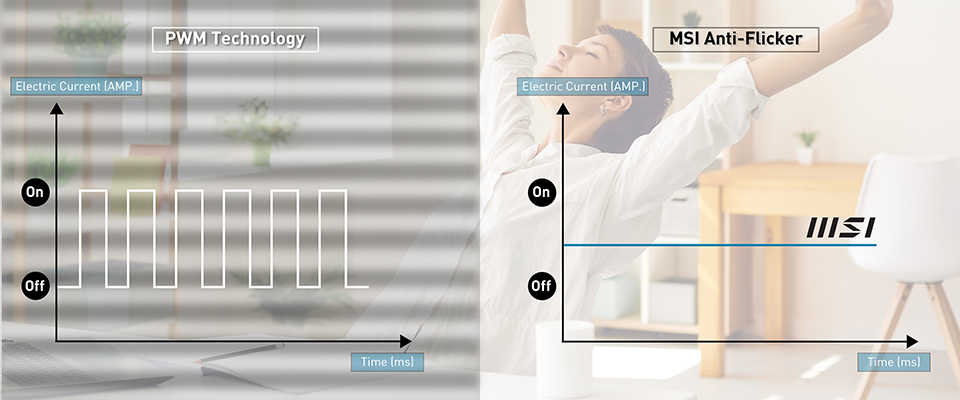
Most traditional screens have an average flickering rate of 200-300 times per second. A high flicker rate increases stability and makes the screen appear less flickery, thus making it easier on the eyes. In addition, the screen's backlight is controlled through pulse-width modulation (PWM) technology, which is rapidly cycled on and off at high frequencies to regulate the amount of light emitted. Therefore, if the working hour is 8 hours per day, our eyes will suffer over 5 million flicker times per day. With the high flicker rate, some people may still be sensitive to flicker and experience computer vision syndromes (CVS), such as eye strain or other symptoms.
Those who spend long hours in front of a computer screen may experience eye strain and discomfort caused by the flicker of a monitor. Flicker refers to the rapid fluctuation of light intensity when a monitor displays an image. To address these concerns, MSI has developed the EyesErgo technology, a comprehensive solution that combines eye-care technology, ergonomic design, and intuitive software for a healthier viewing experience. This article will explore the MSI Anti-Flicker technology which is part of EyesErgo, the causes of monitor flicker, its effects on eye health, and provide tips on reducing the impact of flicker and improving eye health and comfort.

The Cause of Flickering
Screen flicker is the rapid and repeated fluctuation of light intensity that occurs when a monitor displays an image. This flicker can be caused by several factors. For example,
- Backlight: A screen is illuminated by its backlights. A faulty or aging backlight can cause the flicker.
- PWM Technology: The PWM is commonly used in traditional screens and can also cause flicker.
- Refresh rate: A monitor's refresh rate refers to the number of times the screen is redrawn per second. A low refresh rate might cause flicker and eye strain.
- Power supply: Flickering screens can be caused by fluctuating power supplies.
What is Anti-Flicker Technology
The MSI All-in-One PC boasts the patented Anti-Flicker technology that stabilizes electric currents and significantly reduces flickering. This protects the user's eyes and prevents fatigue and strain that may arise from prolonged screen use.
The MSI Anti-Flicker Technology consists of 3 parts: a voltage DC Regulator, a Digital-to-Analog Converter (DAC), and a resistor. The DC Regulator provides a stable voltage for the digital-to-analog converter. The converter transforms the PWM Brightness Control signal into an analog voltage signal. The bandwidth of the PWM Brightness Control signal controls the analog voltage signal. The PWM dimming IC provides a fixed voltage, causing the backlight IC to adjust brightness linearly based on perceived current levels. The output current value can be adjusted to change the screen brightness by controlling the electric current. Since the output current is constant without any frequency changes, the display's brightness won't flicker at a rate of 200-300HZ per second.
Tips to Improve Eye Health and Comfort with the MSI Anti-flicker All-in-One PC
Multiple eye-related problems can be caused by prolonged screen flicker exposure, including eye strain, blurred vision, dry eyes, fatigue, headaches or neck and shoulder pain, or difficulty focusing, etc.
However, there are several ways to reduce flicker and improve eye health, for example,
1. Be mindful of the lighting in your environment and reduce the screen brightness
It is possible to experience eye strain and discomfort when viewing a bright screen. Keep your computer away from direct sunlight and reduce the screen brightness to a comfortable level.
2. Choose MSI All-in-One PC with Anti-Flicker Technology
The MSI anti-flicker All-in-One PC can reduce the amount of flickering and glare on the screen, which can help to minimize eye strain and discomfort.

3. Check the proper color temperature
Ensure the screen's color temperature is set to a comfortable level to reduce eye strain. Most of the current monitors allow you to select color temperatures from "Warm" to "Neutral" and from "Cool" to "Warm." Experiment with these settings to find the ideal one to ensure your eyes are as comfortable as possible.
4. Take breaks every 20 minutes
In order to reduce eye strain and discomfort, it is recommended to take frequent breaks. The American Optometric Association recommends the 20-20-20 rule: every 20 minutes, look at something 20 feet away for 20 seconds. It can help to reduce eye discomfort.
5. Blink frequently to prevent eye dryness
Blinking has many benefits, including moistening the eyes and preventing dryness. Whenever you work on a computer, make a conscious effort to blink more frequently to keep your eyes moist.
6. Correct the working posture
To prevent neck and shoulder pain, it is essential to maintain a proper posture while working on a computer. For example, set your chair and screen to a comfortable height to reduce the strain on your neck and shoulders. In addition, you should ideally sit at a comfortable distance from your screen to minimize fatigue.
Those who spend a significant amount of time at their computers may suffer from eye strain, discomfort, and other eye-related problems as a result of screen flicker. However, there are still several ways in which you can reduce the impact of flickering on your eyes as well as improve eye health and comfort, such as choosing the MSI All-in-One PC with anti-flicker technology, reducing screen brightness, adjusting the proper color temperature, taking frequent breaks and blinking frequently, etc., to keep eyes healthy.
More information can be found by following the links below:
Modern Series All-in-One PC:
https://www.msi.com/All-in-One-PCs/Products#?tag=Modern-Series
https://www.msi.com/All-in-One-PCs/Products#?tag=Modern-Series
PRO Series All-in-One PC:
https://www.msi.com/All-in-One-PCs/Products#?tag=PRO-Series
https://www.msi.com/All-in-One-PCs/Products#?tag=PRO-Series