Unlock the Ultimate HDR Experience
Monitors
QD-OLED is renowned for its impressive HDR effect, which becomes especially evident when you're playing or watching HDR content. Third-party reviewers have tested the HDR accuracy of MEG 342C QD-OLED and found it to be excellent, meaning that you can enjoy vibrant images right out of the box. If you want to further enhance the HDR effect of your monitor, we recommend using a calibration application made by Windows that can easily do the job.
General Settings
To begin with, it's important to adjust the brightness, contrast, and color temperature of our gaming-preferred settings. As each individual's room environment differs, some may prefer playing games in dimly-lit rooms while others prefer brightly-lit ones. Therefore, determining the optimal display settings for our gaming environment is crucial.
You can adjust your display settings using the MSI Gaming Intelligence and OSD menu, or by using an application specific to your GPU, depending on which GPU you have.
Windows HDR Calibration
After we set up our settings, we downloaded the Windows HDR Calibration tool. It's a simple process that doesn't require expensive calibration devices or professional skills. All you need is to update to Windows 11 and follow Microsoft's tutorial.
https://support.microsoft.com/en-us/windows/calibrate-your-hdr-display-using-the-windows-hdr-calibration-app-f30f4809-3369-43e4-9b02-9eabebd23f19
https://support.microsoft.com/en-us/windows/calibrate-your-hdr-display-using-the-windows-hdr-calibration-app-f30f4809-3369-43e4-9b02-9eabebd23f19
To set up the parameters, simply follow the instructions provided in the Windows HDR Calibration. It's important to keep in mind that if you change your monitor settings, you will need to calibrate it again. This is because different settings can affect the outcome of the calibration process. After we calibrated, we go to Windows Color Management to make our profile work.

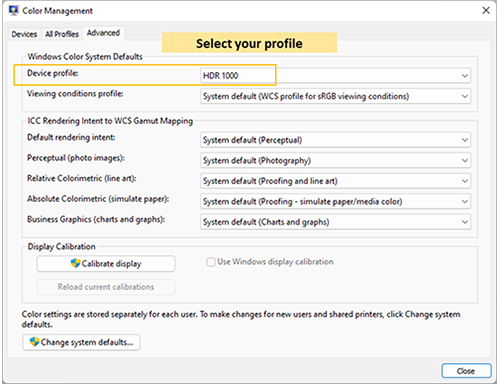
The actual image after calibration
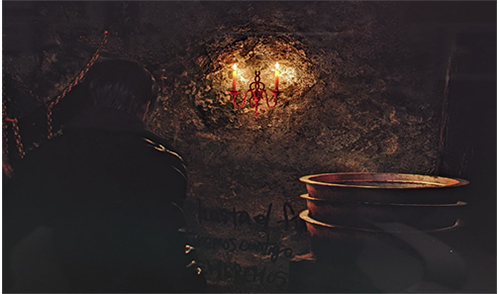
Here, we pick some photos taken from HDR content and see how the effect is.
1. Resident Evil 4 Chainsaw Demo
Display: HDR Mode “On”

2. Hogwarts Legacy
HDR Options: HDR “On”


3. Elden Ring
Sound and Display: HDR “On”

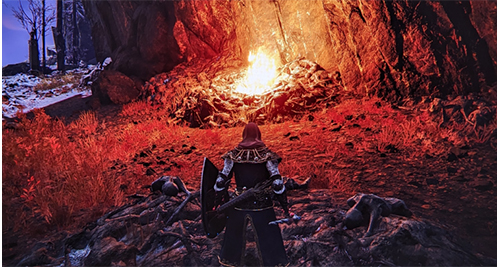
OLED technology allows each pixel to illuminate itself individually, giving it nearly infinite contrast. As seen in the pictures above, the screen's brightness can change significantly in different areas, enabling us to perceive strong light sources like fire, neon lights, the moon, and headlights, as well as deep blacks on dark objects. This is what makes OLED so remarkable. The deep blacks and bright highlights, combined with a wide color gamut, make the images come alive, creating an immersive experience that is truly captivating.
If you're interested in getting the best HDR experience, you can start by creating your own profiles and finding the optimal settings for your favorite games.
For more details about QD-OLED
https://www.msi.com/blog/what-is-qd-oled-what-is-the-difference-with-lcd
How to take care of your MEG 342C QD-OLED
https://www.msi.com/blog/how-msi-oled-care-prevents-oled-from-burn-in
https://www.msi.com/blog/what-is-qd-oled-what-is-the-difference-with-lcd
How to take care of your MEG 342C QD-OLED
https://www.msi.com/blog/how-msi-oled-care-prevents-oled-from-burn-in