The Amazing Display Mode of MSI's Gaming Monitors: A Comprehensive Guide
Monitors
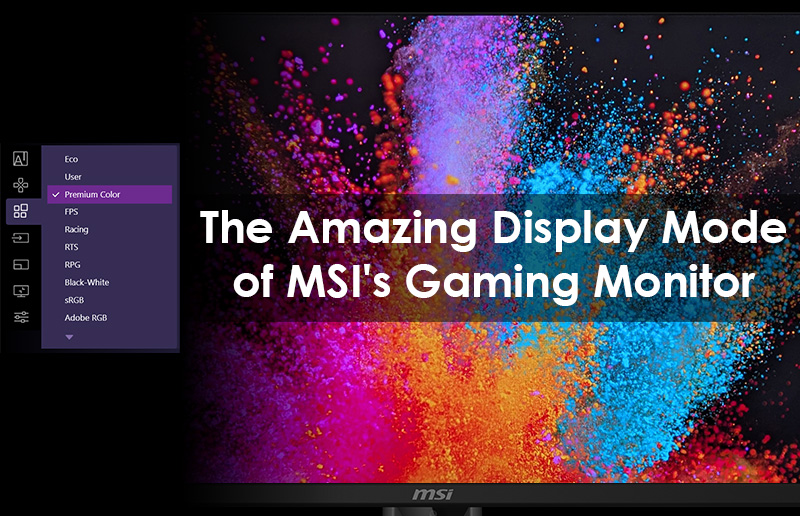
Display clarity and color accuracy have always been top priorities for MSI. Through our OSD Menu or Gaming Intelligence software, we offer a rich variety of color profiles designed to maximize your monitor's potential. Whether you are aiming for a headshot, enjoying a cinematic masterpiece, or working on a design project, there is a profile tailored specifically for you.
However, to strictly follow international energy standards, your monitor likely ships in Eco Mode by default. While energy-efficient, this limits the display's brightness and vibrancy. To experience the true visual impact of your MSI monitor, we highly recommend switching to one of the specialized profiles below. Depending on your specific model, you might find these profiles listed under Game Mode, Pro Mode, or simply Mode.
1. For Competitive Gaming
Victory is in the details. These modes are tuned for speed, visibility, and reaction time.
FPS Mode (First-Person Shooter)
Best For: CS2, VALORANT, Fortnite, Call of Duty, ARC Raiders.
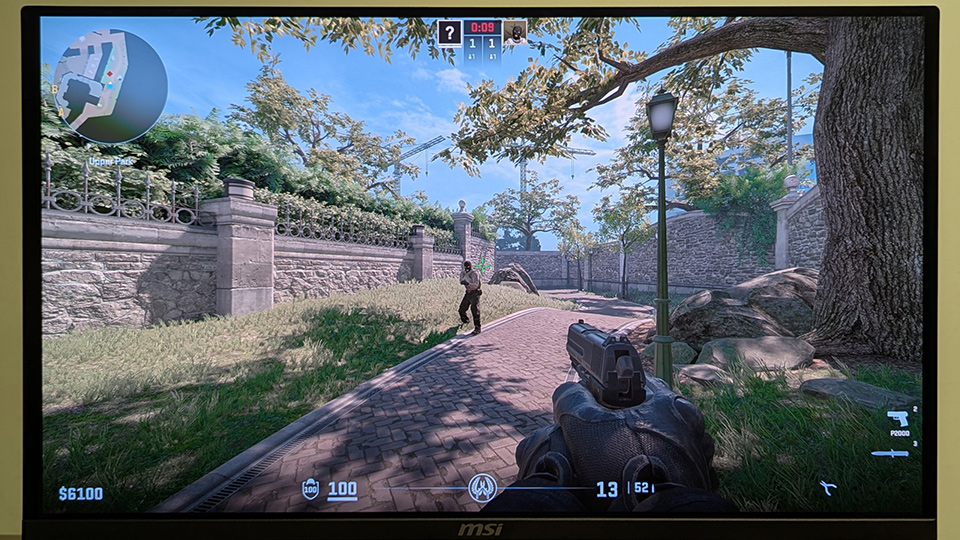
How It Works: FPS Mode intentionally reduces color saturation to prevent vibrant backgrounds from distracting your eyes. Simultaneously, it boosts brightness and contrast.
What You See: Character outlines become sharper and more defined. Enemies hiding in dark corners become clearly visible, allowing for faster target acquisition.
Racing Mode
Best For: Forza, F1, Gran Turismo, DiRT.
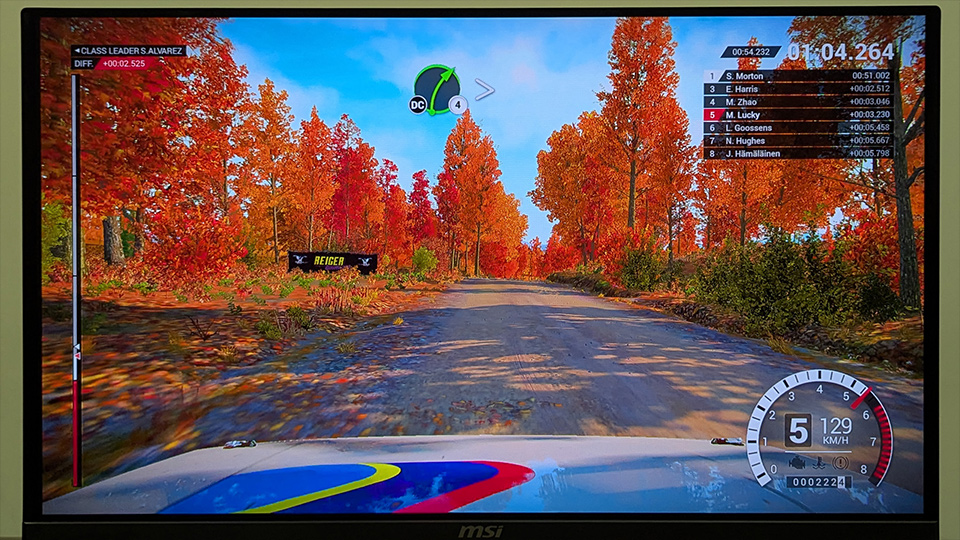
How It Works: Realistic imagery is key to the thrill of speed. We slightly boost saturation and maximize image enhancement for clarity. Crucially, we do not over-sharpen the image to prevent background distractions like buildings or spectators.
What You See: Details like license plates and sunlight reflections on car materials become more realistic.
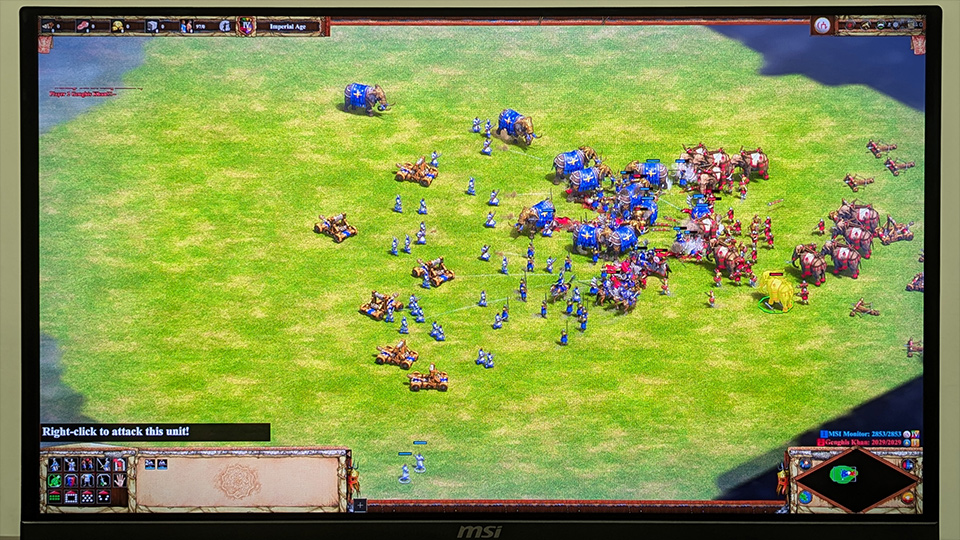
RTS Mode (Real-Time Strategy)
Best For: StarCraft, Age of Empires, Civilization, Anno.
How It Works: RTS games involve chaotic battlefields where distinguishing units is critical. This mode increases color saturation and sharpness to make in-game elements more vivid.
What You See: Every unit is distinct and easy to recognize, ensuring you never lose track of your troops during intense skirmishes.
RPG Mode (Role-Playing Game)
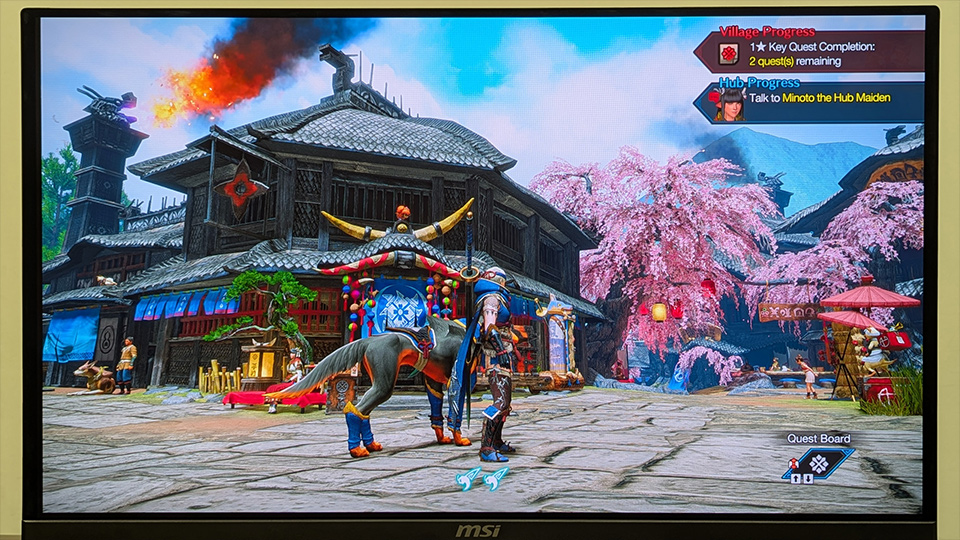
Best For: Final Fantasy, Cyberpunk 2077, Elden Ring.
How It Works: Unlike RTS games, RPGs are typically single-player and rely heavily on atmosphere. We enhance color saturation similar to RTS mode but maintain a modest balance of brightness and contrast.
What You See: This makes game elements look more vivid and pleasing, preserving the intended mood of the world.
2. For Immersive Experience and Content Creation
Get lost in the world. These modes emphasize atmosphere, realism, and visual impact.
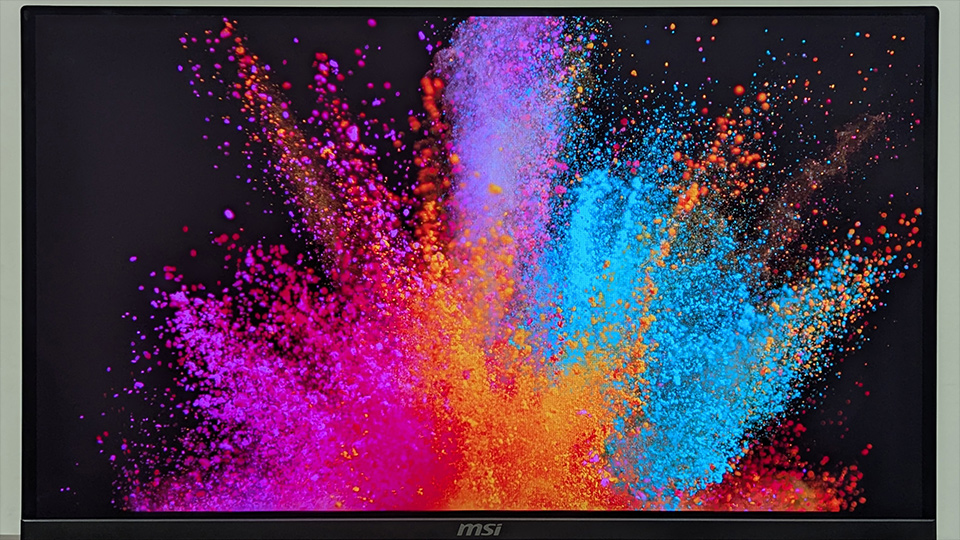
Premium Color Mode
Best For: Open-world games, anime, and general entertainment.
How It Works: Standard sRGB is accurate, but many users crave richer visuals. MSI's exclusive Premium Color Mode unlocks the panel's full potential by increasing color saturation.
What You See: A significantly more vibrant image that makes scenery and videos look magnificent.
Movie Mode
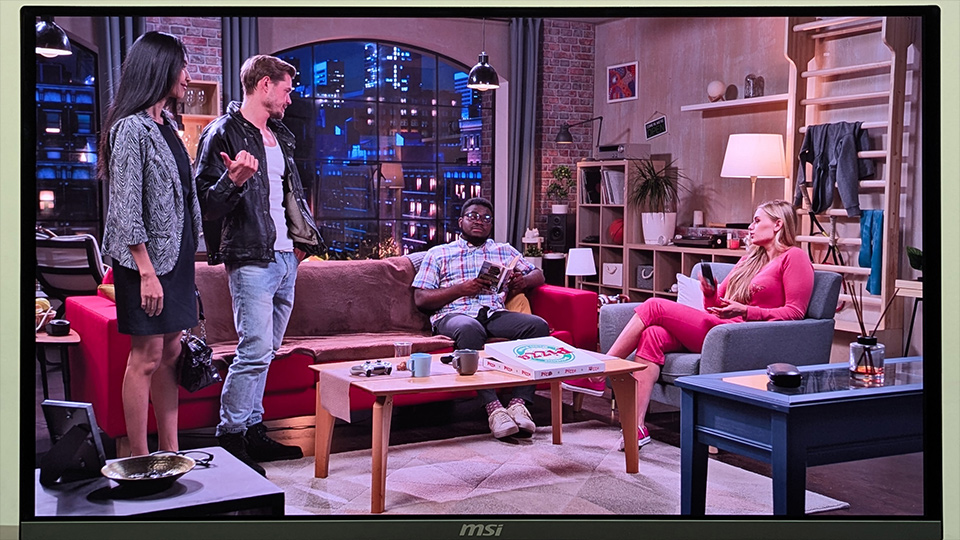
Best For: Netflix, YouTube, Cinema.
How It Works: Standard screens often crush details in dark scenes or render colors dull. Movie Mode enhances saturation and fine-tunes the black balance and dynamic contrast.
What You See: Objects against similar-colored backgrounds become distinct, and shadows retain detail, ensuring you see the film exactly as the director intended.
sRGB / Adobe RGB / Display P3 Mode
Best For: Graphic design, video editing, photography, and print.
How It Works: These are industry-standard color gamuts. When enabled, the monitor restricts its output to the specific color range selected.
What You See: Provides the most accurate color representation for professional workflows, ensuring consistency across different devices.
3. For Daily Utility & Care
Focus, eye comfort, and energy saving.
Office Mode
Best For: Spreadsheets, word processing, coding.
How It Works: Reduces screen brightness to mitigate glare. Increases contrast ratios for sharper text.
What You See: Reduces eye fatigue and ensures clear visibility, minimizing errors during long work sessions.
Anti-Blue Mode
Best For: Reading, late-night browsing.
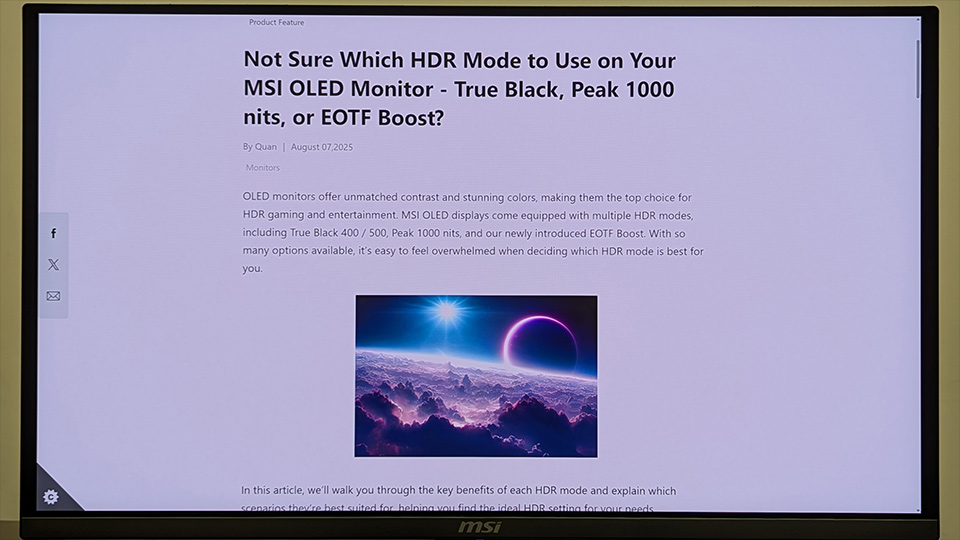
How It Works: Long-term exposure to blue light from screens can cause eye fatigue. This mode filters out the blue light spectrum.
What You See: The screen will appear warmer (yellowish), which is normal. This effectively protects your eye health during continuous usage.
Black-White Mode
Best For: E-books, sketching, digital painting.
How It Works: Removes all color information, displaying only grayscale. For artists, this eliminates color interference to reveal the true luminosity (value) of the artwork.
What You See: Reduces distractions for readers. For artists, it helps verify the 3D structure, light, and shadow of their work, preventing "flat" images caused by incorrect values.
Eco Mode
Best For: Power saving.
How It Works: The factory default setting designed to reduce power consumption.
What You See: Saves energy, but we recommend switching to one of the above modes for a superior viewing experience.
Unlock your visual potential! This guide is designed to help you select the perfect display setting for your specific needs, significantly enhancing your MSI monitor experience. Explore the modes now and ensure every frame you see is precise, vivid, and unparalleled.
Note: Some display modes are exclusive features supported only by specific monitors. For detailed compatibility, please refer to your monitor's User Manual.