How to Use MSI OLED Monitors For Productivity: Essential Tips to Prevent Burn-In
Monitors
This article will introduce our settings designed for productivity purposes. While some may consider OLED monitors suitable only for entertainment due to the risk of burn-in, MSI OLED Care includes features tailored for productivity scenarios. These features help combat burn-in, making OLED monitors viable for both work and play.
Why the risk of burn-in is higher on productivity?
Remember three key factors: temperature, brightness, and static images. These factors influence the risk of burn-in. The screen content is often static when using monitors for productivity purposes, and many application or browser backgrounds are white. Both static images and higher brightness levels increase the risk of burn-in.

What are the recommended settings for productivity?
Therefore, our settings are designed to prevent static images from being displayed continuously and avoid using higher brightness when unnecessary.
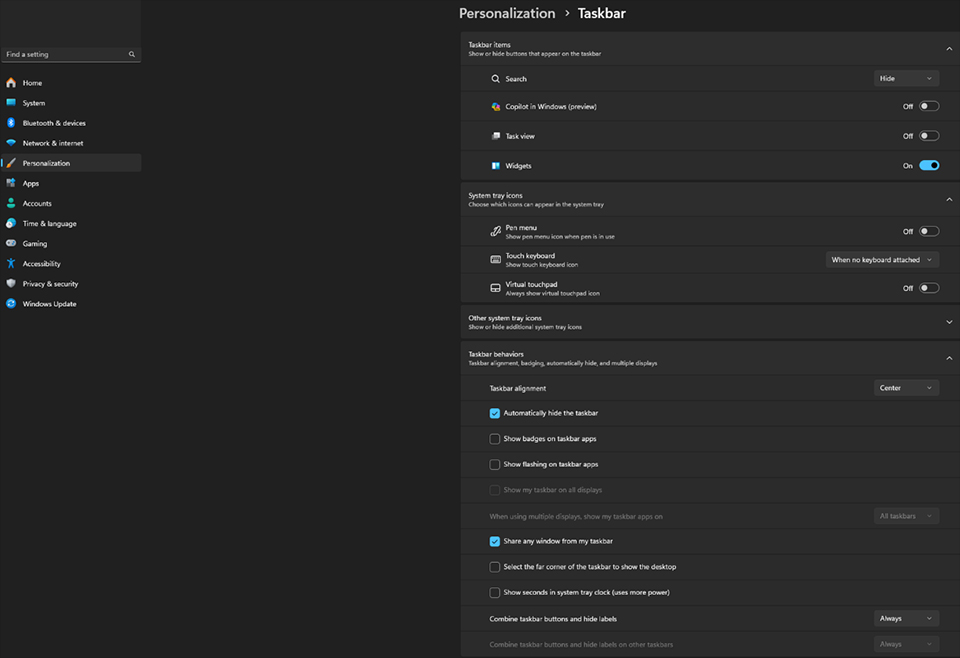
First, you can hide the taskbar. The taskbar is constantly present when working or browsing the Internet, which can lead to image retention at the bottom of the screen over time. Hiding the taskbar is simple: Go to Windows settings and select Personalization.
We recommend setting the brightness to below 60 and adjusting it according to your environment. If you often use the monitor in a darker room, you can opt for even lower brightness settings.
How MSI OLED Care can help?
We have previously introduced MSI's unique OLED Care features, which help to combat burn-in whether you're using the monitor for gaming or productivity.
Learn more about MSI OLED Care
https://www.msi.com/blog/how-msi-oled-care-prevents-oled-from-burn-in
https://www.msi.com/blog/how-msi-oled-care-prevents-oled-from-burn-in
1. Panel Protect / Notice
One of the important functions is Panel Protect. Although some may not like it, Panel Protect is essential for maintaining OLED monitors. With MSI settings, you can delay Panel Protect until 16 hours of usage. Panel Protect will run automatically every 4 hours of use when you turn off the monitor or put it in standby mode. We recommend setting the Panel Notice to activate after 16 hours of usage to avoid interruptions during busy work periods. However, if you are available, we suggest running Panel Protect every 4 hours.
2. Pixel Shift
Pixel Shift helps prevent pixels from aging by avoiding the display of the same images on the same pixels. Generally, we suggest setting the Pixel Shift speed to normal. However, if you use the monitor for tasks like photo editing, we recommend setting the Pixel Shift speed to slow.
3. Static Screen / Multi Logo Detection
While engaging in productivity tasks, the screen often displays static images. Therefore, we recommend turning on Static Screen and Multi Logo Detection and setting the reduction levels to 7 and 2 respectively.
4. Taskbar Detection
Taskbar Detection can identify the taskbar and lower the brightness around it. As previously recommended, you can hide the taskbar in Windows settings. However, if you prefer not to hide the taskbar, you can enable Taskbar Detection and set it to level 2 to prevent a rectangular burn-in at the bottom of the screen in the future.
5. Boundary Detection
The last feature is Boundary Detection, which is very useful for both productivity and gaming. To maximize workflow, we often have multiple windows open simultaneously. However, the lines between these windows can cause issues for OLED monitors, potentially creating a shallow line over extended use. Boundary Detection is designed to address this risk. We highly recommend turning it on and setting it to level 3 to reduce the likelihood of burn-in along window borders.

*MSI OLED Care Features differ by the models. Please check out the support list here.
https://www.msi.com/blog/how-msi-oled-care-prevents-oled-from-burn-in
https://www.msi.com/blog/how-msi-oled-care-prevents-oled-from-burn-in
Setting Table
Settings in OSD Menu
Panel Protect / Notice
Usage 16 hrs
Pixel Shift
Normal
Static Detection
Reducing Level: 7
Multi Logo Detection
Reducing Level: 2
Taskbar Detection
Reducing Level: 2
Boundary Detection
Reducing Level: 3
No worry about Burn-in on MSI OLED Monitor
Although OLED monitors are primarily designed for gaming and entertainment, they are also capable of handling productivity tasks. MSI offers a multitude of features aimed at reducing the risk of burn-in. Additionally, MSI OLED monitors come with a 3-year burn-in warranty, providing peace of mind regarding monitor durability. Therefore, you can confidently choose MSI's OLED monitors without concerns about potential burn-in issues.