How to turn SDR content into HDR? Come to Meet NVIDIA RTX Video HDR.
Desktops ,
Monitors
HDR is High Dynamic Range. This is a format that can support more color depth and high contrast and then display the video or image quality close to real objects. That’s why HDR is very popular in games, photography, and movies. NVIDIA uses AI-enhanced technology can turn SDR content into HDR display at GeForce RTX™ 40 series GPU. It can bring a more immersive experience to users. However, we still need an HDR-certified monitor to display images and video. Next, I will guide you on how to use NVIDIA RTX Video HDR on MSI gaming desktops and QD-OLED monitors.
NVIDIA RTX Video HDR can make dark scenes in SDR into HDR display.
Before using NVIDIA RTX Video HDR, there are several conditions we need to fulfill can run the function properly.
- A Monitor supports HDR10. The monitor brightness needs to reach 1000 nits. MSI QD-OLED monitors can all reach 1000 nits brightness.
- A NVIDIA® GeForce RTX™ Graphics Card. The function is available on GeForce RTX™20 to 40 series graphics cards. We recommend using a GeForce RTX™ 40 series graphics card for the best performance.
- Upgrade or install the GPU driver to the latest version which you can enable RTX video HDR in the NVIDIA Control Panel.
Make sure the preparation is ready, then we can start to configure.
1. Enable Windows HDR
To open the “Display Settings” on the Windows settings page. Then switch “On” to activate Windows HDR. The location is like the below picture.

2. Enable NIVIDA RTX Video HDR
After enabling Windows HDR, open the NVIDIA Control Panel, and click “Adjust video Image settings”. You will see the RTX video enhancement features. Then activate the “High Dynamic Range” function and apply the settings. The location is like the below picture
.

3. Enjoy playing Video/Game
Now we can enjoy playing games or watching videos within HDR configuration. You also can use NVIDIA RTX video HDR to replace native HDR. Some media and influencers review the NVIDIA RTX Video HDR performance as better than native HDR.

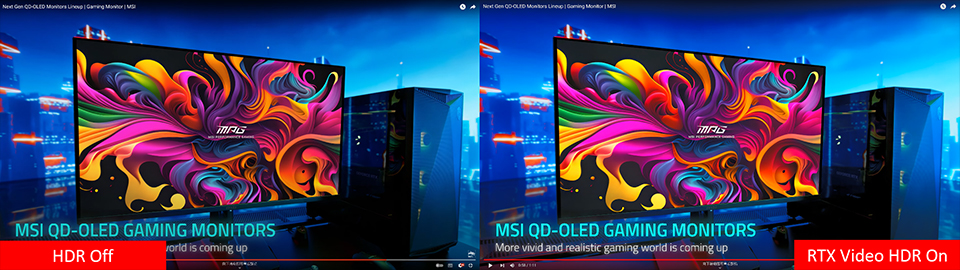
Those are video comparisons of RTX Video HDR and non-HDR for your reference. You can see some differences in display more brightness and deep contrast.
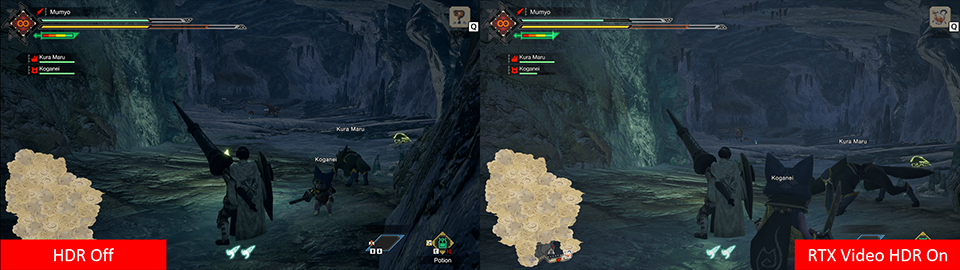
Monster Hunter Rise is a game that does not support HDR performance, but we can use NVIDIA AI-enhanced game feature RTX Video HDR. To make the game display like HDR performance.

Helldivers 2 is a recently popular game; the game breaks many records in a short time. So, we can understand the game is very interesting then attracts many players to play. Although, many players are compliant the game cannot display well on HDR performance. The game display happens to wash out or greyed out. But, now we can enable NVIDIA RTX Video HDR to improve the game display and ignore the side effects.
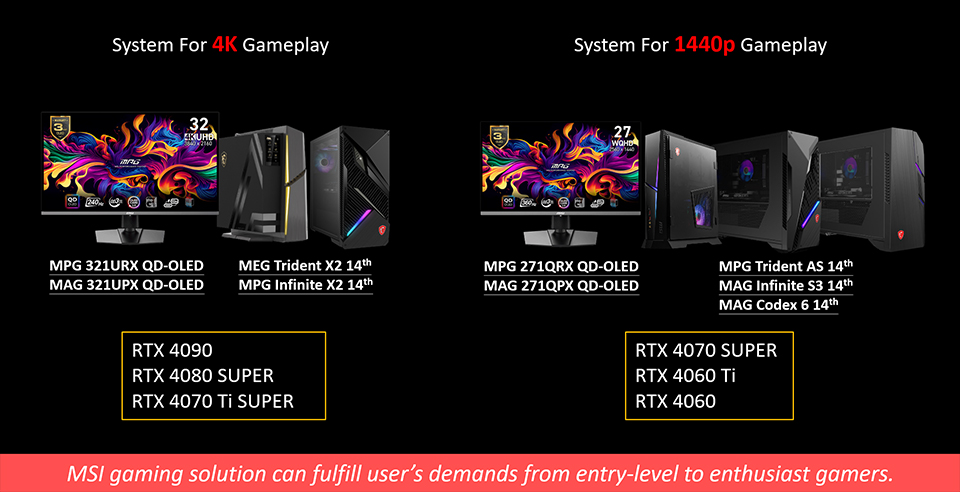
Finally, we strongly suggest using the NVIDIA® GeForce RTX™ 40 series graphics card to use RTX Video HDR for the best performance, GeForce RTX™40 series has the most powerful AI computing ability and sufficient VRAM which is good to handle it. Of course, an HDR-certified monitor is also important. We cannot watch beautiful images and videos without a suitable display. MSI gaming solutions always consider gamers' needs, all MSI gaming desktops use NVIDIA® GeForce RTX™ 40 series graphics cards, and the OLED monitors are available now.

When the monitor doesn't support HDR10 (1000nits) even if the graphics card supports the RTX Video HDR function, it still does not work.
NVIDIA also keeps pushing AI-powered features into our lives, no matter creation or gaming. They have already released a video upscale AI-enhanced function, NVIDIA Video Super Resolution. It can upscale video resolution from 1080p to 4K display. We can combine RTX Video Super Resolution and RTX Video HDR for the best video experience. You can check the tutorial below for more details.
How to set up NVIDIA Video Super Resolution: Link
How to set up NVIDIA Video Super Resolution: Link
For more MSI monitor knowledge or tutorials, you can visit our Monitor Lab for the latest information.
Monitor Lab: Link
Monitor Lab: Link
If you are interested in playing different games on MSI gaming desktops and monitors, you can visit our website to find a suitable setup. Select the game you want to play, and your preferred monitor size and resolution, and the system will show you how the game performs.
Game Benchmark: Link
Game Benchmark: Link

MSI QD-OLED Monitor list
MEG 342C QD-OLED: https://www.msi.com/Monitor/MEG-342C-QD-OLED
MPG 491CQP QD-OLED: https://www.msi.com/Monitor/MPG-491CQP-QD-OLED
MPG 321URX QD-OLED: https://www.msi.com/Monitor/MPG-321URX-QD-OLED
MPG 271QRX QD-OLED: https://www.msi.com/Monitor/MPG-271QRX-QD-OLED
MAG 341CQP QD-OLED: https://www.msi.com/Monitor/MAG-341CQP-QD-OLED
MAG 321UPX QD-OLED: https://www.msi.com/Monitor/MAG-321UPX-QD-OLED
MAG 271QPX QD-OLED: https://www.msi.com/Monitor/MAG-271QPX-QD-OLED
MEG 342C QD-OLED: https://www.msi.com/Monitor/MEG-342C-QD-OLED
MPG 491CQP QD-OLED: https://www.msi.com/Monitor/MPG-491CQP-QD-OLED
MPG 321URX QD-OLED: https://www.msi.com/Monitor/MPG-321URX-QD-OLED
MPG 271QRX QD-OLED: https://www.msi.com/Monitor/MPG-271QRX-QD-OLED
MAG 341CQP QD-OLED: https://www.msi.com/Monitor/MAG-341CQP-QD-OLED
MAG 321UPX QD-OLED: https://www.msi.com/Monitor/MAG-321UPX-QD-OLED
MAG 271QPX QD-OLED: https://www.msi.com/Monitor/MAG-271QPX-QD-OLED

MSI GeForce RTX™ 40 Series Graphics Card Gaming Desktop List
MEG Trident X2 14th: https://www.msi.com/Desktop/MEG-Trident-X2-14th
MPG Infinite X2 14th: https://www.msi.com/Desktop/MPG-Infinite-X2-14th
MPG Trident AS 14th: https://www.msi.com/Desktop/MPG-Trident-AS-14th
MAG Infinite S3 14th: https://www.msi.com/Desktop/MAG-Infinite-S3-14th
MAG Codex 6 14th: https://www.msi.com/Desktop/MAG-Codex-6-14th
MEG Trident X2 14th: https://www.msi.com/Desktop/MEG-Trident-X2-14th
MPG Infinite X2 14th: https://www.msi.com/Desktop/MPG-Infinite-X2-14th
MPG Trident AS 14th: https://www.msi.com/Desktop/MPG-Trident-AS-14th
MAG Infinite S3 14th: https://www.msi.com/Desktop/MAG-Infinite-S3-14th
MAG Codex 6 14th: https://www.msi.com/Desktop/MAG-Codex-6-14th