How to Start Streaming on Twitch (PC Guide)
Motherboards ,
Graphics Cards ,
Peripherals ,
Monitors
Are you looking to make a mark for yourself in the streaming world? Whether you’ve been dreaming of becoming a professional streamer or want to dip your toes into live streaming simply, it all starts with setting up your Twitch account. Getting set up can be intimidating since there are so many steps involved – but don’t worry! With our guide, we’ll walk you through the basics of creating and customizing your Twitch profile so that you can start engaging with viewers and building an audience.
How to Set Up Your Twitch Account
After you decide to Twitch livestream, you will need to set up your own Twitch account (if you haven’t done so already). You should do this once you understand what you want for your overall branding. You can also use this account to watch other streams for inspiration before you ever go live on your own.
To create your own Twitch account, complete the following steps:
Step 1

Visit the Twitch website, then click “Sign up” in the upper right-hand side of the screen.
Step 2

Input your username and create a strong password to keep it safe. You will also be able to set up 2FA authentication once you have created your account to ensure people will not be able to break in and stream without your authorization. Click “Next Step” when you have finished and continue on through the setup process.
Your stream name is a very important aspect of your Twitch branding, so spend time coming up with gamertag ideas that are catchy and available. While you can change your Twitch name later on, you don’t want to have to re-create all your branding in the future
Step 3

Once you have finished creating your Twitch account, you will want to click on your avatar in the top right-hand side of the screen, then select “Creator Dashboard’ from the drop-down menu.

On the next page, you’ll be able to see some action items. Under the “About Me” section, you can fill in a short bio about you and your channel, as well as upload your profile picture.
Step 4

After you have set up your bio and profile picture, it will be time to set up your Twitch panels. To do this, you will again click on your avatar in the upper right-hand side of the screen, then choose “Channel” from the drop-down menu.

Choose the “About” section, then toggle “Edit Panels.” There you can look through panel extensions or add panels by scratch. It is a good idea to use panels to both promote your other social media, provide additional information about you and stream, and even upload some graphics to keep it visually aesthetic. You can also set up donations through a cloudbot, such as Streamlabs, to give your viewers an alternate way to donate to your stream.
Step 5

Create (and stick to) a stream schedule. Not creating a schedule is one of the most common beginner mistakes for streamers. A schedule allows people who like your content know when to return and it also helps keep you accountable to show up and create content.
Create the Perfect Streaming PC
To be able to stream on Twitch with ease, you will need a PC that can handle running your games while streaming at the same time. With this in mind, you should build or get a fast and powerful streaming and gaming PC. Here is the streaming hardware we recommend to build your perfect streaming PC.
CPU
For CPUs, you have the option between Intel and AMD cores. This component is basically the brain of your PC, so choose one that is powerful enough for your streaming and gaming needs.
You can go for one of the following latest CPU cores:
Intel Core i9-13900K Features:
- 24 total cores: 8 performance cores and 16 efficient-cores
- 32 Threads
- Max Turbo Frequency 5.8GHz
AMD Ryzen 9 7950X Features:
- 12 CPU cores
- 24 Threads
- Max Boost Clock: 5.4GHz
Good alternatives to these ones are the AMD Ryzen 9 7900X and the Intel Core i7-13700K.
Motherboard
When choosing a motherboard, make sure that it is compatible with your chosen CPU. This should have good build quality since it will carry the rest of the components for your PC. You can check the following motherboard recommendations below:

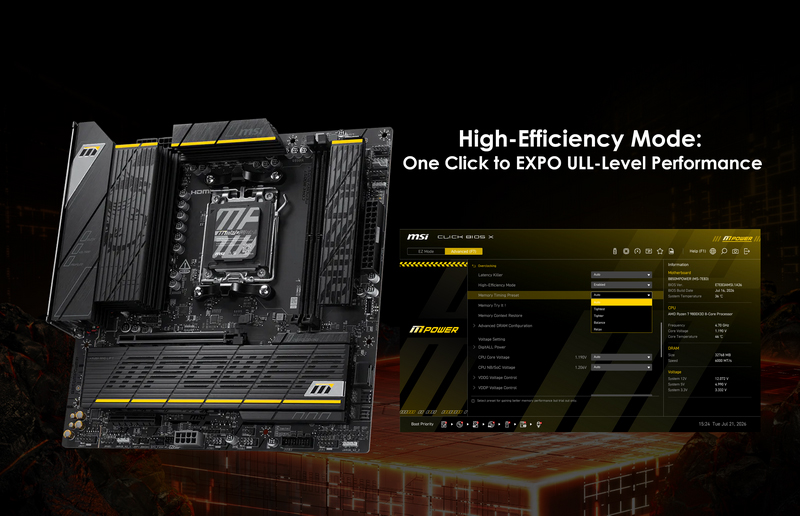
The MPG Z790 CARBON WIFI motherboard adopts a serious dark carbon look for serious performance. It boasts an incredible combination of top-tier features like DDR5 and PCIe 5.0 with affordability – making it an excellent fit for streamers who demand future-ready hardware.
Features:
- Equip with 19 + 1 + 1 (22) VRM phases with a 105A Smart Power Stage
- An extended heatsink with a heatpipe that dissipates heat
- Offer PCIe 5.0 support on both the PCIe slot and the M.2 slot
- 2.5G LAN and Wi-Fi 6E support

The MPG X670E CARBON WIFI takes a humbler approach – trying to find a balance between top-tier performance and value and it can easily handle even the best Ryzen 7000 processors without holding them back!
Features:
- Enhanced Power Design: 18 Duet Rail Power System, designed with 90A Power stage.
- Premium Thermal Solution: Extended Heatsink with Direct Touched Heat-pipe and Double-sided M.2 Shield Frozr
- Offer PCIe 5.0 support on 2 PCIe slots and 2 M.2 slots
- 2.5G LAN and Wi-Fi 6E support
MSI has other motherboards you can choose from. They have the MAG and MPG Series, which have powerful motherboards as well.
GPU
Keep in mind that you are going to stream games on your channel. This means that you will need an amazing GPU for your PC with all the graphics that come with the gameplay.

Streaming in style! The NVIDIA® GeForce RTX™ 4080 16GB delivers the ultra performance and features that enthusiast gamers and creators demand. Bring your games and streaming projects to life with ray tracing and AI-powered graphics with DLSS 3. It’s an ideal GPU for Twitch streamers.
Features:
- TORX Fan 5.0
- 16GB GDDR6X
- Boost Clock / Memory Speed: 2595 MHz / 22.4 Gbps
Memory
Random access memory (RAM) helps your PC to run smoothly. It’s especially important for people like you who plan to multitask most of the time. Remember that your PC will juggle the task of running your games and facilitating your streams. You need the right amount of good-quality RAM to avoid glitches and whatnot when streaming.
Here’s a RAM you can opt for your streaming setup:
Kingston FURY Renegade DDR5 RGB 7200MT/s 16GB*2
This is a RAM that is popular among streamers. It comes in a beautifully sleek and modern design that’s perfect for Intel users.
Features
- Dynamic RGB lighting and aggressive heat spreader design
- Intel® XMP 3.0 Certified
- Engineered to maximize performance
An alternative to this would be the Corsair Vengeance RGB Pro.
Peripherals
As a streamer, you will also need to invest in gaming peripherals. This additional equipment will improve not only your gameplay but also your streaming quality. You will greatly benefit from getting your own quality monitor, keyboard, gaming mouse, headphones, webcam, and microphone
Here are a couple of gaming peripherals we recommend for novice streamers:
Monitor: Optix G274
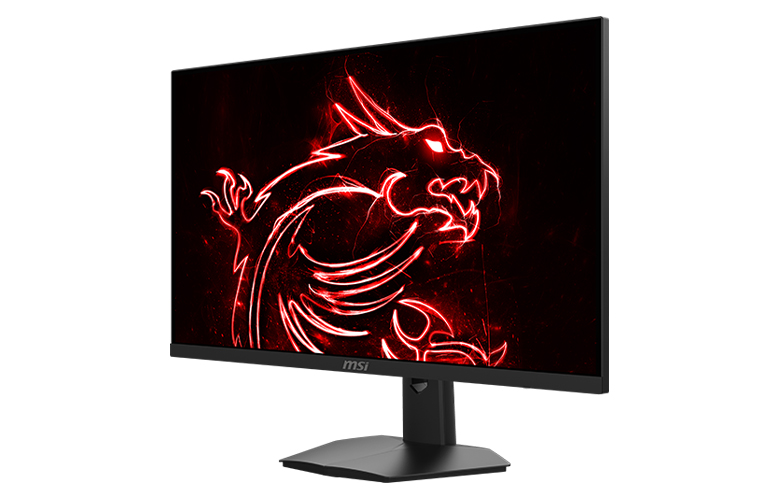
The MSI Optix G274 monitor offers smooth and responsive gaming with a 170Hz refresh rate and 1ms response time. Its IPS panel ensures accurate colors and wide viewing angles, while NVIDIA G-Sync technology eliminates screen tearing and stuttering. With powerful and sleek design, this monitor is perfect for streamers looking to deliver high-quality and visually stunning gameplay.
Features:
- 170Hz Refresh Rate
- NVIDIA G-Sync Compatible
- Anti-Flicker and Less Blue Light – Game even longer and prevent eye strain and fatigue.
Keyboard: VIGOR GK71 SONIC - BLUE SWITCHES
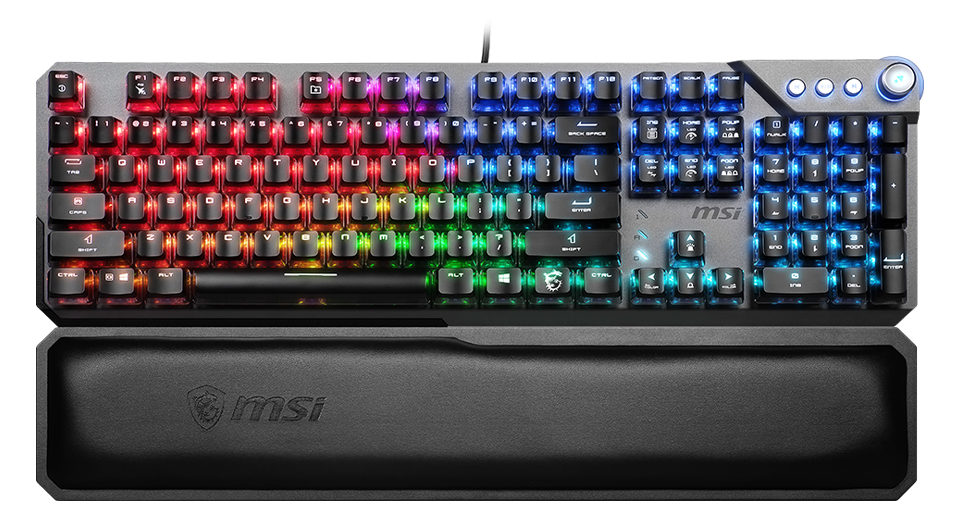
Equipped with MSI's proprietary MSI Sonic Switches, which are the world's lightest switches, and unique transparent MSI ClearCaps that enhance lighting effects. It features multimedia keys and a scroll wheel design for convenient real-time volume control, and comes with an ergonomic memory foam wrist rest to reduce user fatigue.
Features:
- Built with MSI Sonic Switches
- MSI ClearCaps for vivid RGB illumination
- Premium memory foam wrist rest
- Innovative Smart Dual Touch Volume Scroll
- Dedicated Media Keys Control
Gaming Mouse: CLUTCH GM51 LIGHTWEIGHT WIRELESS

Designed with your comfort and performance in mind, its classic ergonomic right-hand shape ensures a comfortable grip for extended use. With a maximum DPI of 26000, this mouse provides optimal precision and accuracy for any task. The sleek appearance is accentuated with patented side RGB lighting effects that add a touch of style to your setup. Plus, with MSI's Snap Charging technology, you can quickly charge the mouse via its wired connection, ensuring uninterrupted use when you need it most.
Features:
- 85g lightweight & classic ergonomic form design
- Up to 26000 DPI with a 1ms Polling Rate
- Patented MSI DIAMOND LIGHTGRIPS
- Tri-mode connectivity with MSI SWIFTSPEED wireless technology
- Supports MSI SNAP CHARGING and charging dock
Headphones: IMMERSE GH50

A good pair of headphones will come a long way. You’ll have a better gaming and streaming experience. And since you’ll be streaming games, hearing and communicating with your team is essential.
- 40mm Neodymium drivers
- Virtual 7.1 surround sound & vibration system
- RGB Mystic Light with millions of colors and various effects
- Detachable microphone
- Inline controller
Webcam: Microsoft LifeCam Studio
As a Twitch streamer, you can gain more followers in a shorter span of time when you have good visuals. Viewers tend to stay on streams when streamers have their webcams turned on. Having a webcam is also a great way to engage with the community you are building.
- Full 1080p image quality
- ClearFrame Technology
- TrueColor Technology
- Good quality built-in microphone
Microphone: MSI IMMERSE GV60 STREAMING MIC

Even if you won’t usually talk to your viewers, it’s still ideal to have a dedicated high-quality microphone. Having great visuals is one thing, but it’s also important for your viewers to hear you clearly as well. Improve the quality of your streams with a microphone
- High resolution sample rate: 24bit/96kHz
- 4 pickup patterns
- Real-time monitoring
- Plug & play with on-mic controls
- Mounting ready design
Set Up Software and Graphics
Once you have a good streaming PC, you will need to set up your broadcasting software and other streaming elements, such as Twitch extensions and plugins, as well as graphics for your stream.
We will cover how to complete your initial setup with OBS Studio, the most popular streaming software on the market. Not only is it open-source, but it is also completely free to use. Complete the following steps to connect OBS to your Twitch account:
Step 1

Download and Install OBS Studio to your PC.
Step 2

Once it has been installed, click “File” in the top left-hand side of the screen and select “Settings” from the drop-down menu.
Step 3

Select the “Stream” option in the left sidebar, then click the “Connect Account” button.
Step 4

There, you will be able to log in using your Twitch username and password. This will link your OBS Studio account and your Twitch account, allowing you to stream easily without using your Twitch key.
Step 5
Once you have connected the two platforms, you will need to set up your OBS scenes. You can create professional-looking streams very affordably using stream overlays. These are graphics that you can use to showcase various aspects of your stream, including your chat, your latest followers, a border around your webcam feed, and more.

You can also use a service, such as Own3d.Pro, to gain access to many different graphics setups and extension services.
Your stream graphics will be fairly simple to set up, though they vary depending on where you get your graphics. Most companies will provide instructions for you.
Step 6
You will also want to set up OBS plugins to make your stream more engaging. These plugins can do everything from embedding your stream’s chat on your screen to blurring out information. There are even plugins that provide closed captioning for hard-of-hearing viewers.
One of the most important features a plugin can offer is showing your stream alerts. These messages will generally flash across the screen whenever you get a new follower, subscriber, or someone “raids” your channel with their viewers.
Create Engaging Content
To keep people on your stream, you will want to focus on creating engaging content. People won’t stay on your stream if they aren’t being entertained. One tip that many content creators try is to check your own streams after they are finished. Try to be honest with yourself to determine whether or not you would watch it. Ask yourself the following:
- Do you engage with your audience? While larger streamers can typically get away with not talking to their viewers, small channels need to engage with the people on their stream. Talk to them, ask them about their day, create mini-games, or have a question of the day. If you aren’t specifically talking to them, talk about the game you are playing, a story about your life, or anything else. Just keep talking.
- Are you playing the right music? Playing music on your stream is a great way to add value to your content without a lot of extra work. That being said, you need to play royalty-free music on your Twitch stream to ensure that you are within the terms. Playing copyrighted music is in opposition with DMCA laws and could get you banned from the platform.
- Are you in the right category? If people are looking to watch a specific game, they won’t enjoy your content if you are playing something else or are just chatting. Make sure that you are streaming what you claim you are.
- How does your thumbnail look? If you were scrolling through Twitch, would you click on your own channel? Make sure your graphics are neat and that people can see that you are streaming with a webcam. Over 50% of viewers will not click on a channel if they don’t see a webcam.
- Do you have a good stream title? Aside from your thumbnail, your stream title is the only thing you can show off to potential viewers looking for a new channel to watch. Take your time creating something that will grab their attention and bring people into your channel.
Pick the Right Game
There is a lot of discussion about the best games to stream on Twitch. While many people look at the most popular games being streamed, it is unlikely for a new streamer to be found if playing the game. Unless you are bringing an audience from another platform, it is typically best to look for games that have fewer streamers creating content.
Look for games that are within your favorite genre. Better yet, research new or early releases within the genre to find out if there is a decent amount of hype. Research the game and stream it when it launches, making sure that you continually talk about the game while you stream. Invite people who stop by to ask you questions about it, and do your best to answer them.
Consider hosting a community game night where you play games with your viewers. Whether you create a Minecraft server or you play Jackbox games, playing with your audience is a great way to build relationships in your community and generate loyalty to your stream.
That being said, it is important that you stream games that you truly love, as people won’t watch you if they don’t think you are having a good time.

Conclusion
Starting to stream on twitch/pc has many different benefits, depending on the individual. It is a great way to entertain, build relationships and make a few extra coins at the same time. It also provides an avenue for personal growth by teaching you valuable communication and technical skills. There is no one formula for success, so be creative and think outside of the box when marketing your channel. Also, remember that it will take time, practice, and dedication to grow your channel. Achieving a large fanbase requires consistency, so don’t give up if things don’t happen overnight; focus on creating quality content that plays to your strengths.
Learn More:
Best of the Best – Gaming Monitor
Best of the Best – Gaming Motherboard
5 Things Beginners Should Know Before Starting as a Streamer
Best of the Best – Gaming Monitor
Best of the Best – Gaming Motherboard
5 Things Beginners Should Know Before Starting as a Streamer

Chris Grayson is the founder of streamscheme.com, a website devoted to helping content creators build successful online businesses.
He has a content and influencer coaching background, and he uses this knowledge to design actionable advice for new and intermediate streamers.