How to Connect Your Console to a Monitor?
Monitors
While TVs can do an okay job of acting as a display for your modern consoles, a proper gaming monitor will offer a truly premium experience. However, picking one can be quite a task if you don’t keep up with the world of monitors.
In this guide, we’ll cover what factors you should consider when picking a monitor for PlayStation 5, XBOX Series X, or even to prepare for the rumored PlayStation 5 Pro.
Port Selection: HDMI, HDMI, HDMI
Although modern consoles support 4K HDR signals, they can only output it using HDMI 2.1. To enjoy the full 4K 120Hz experience, you should have both a compatible monitor (with the right port) and a quality HDMI cable.
Several 4K monitors in MSI’s monitor lineup, for example, now boast HDMI 2.1 connectivity – ensuring a no-compromise gaming experience for consoles.

Built-in Speakers or External Speakers?
While many gamers would use their own speakers or headphones for game audio, you might want a monitor solution that can handle sound output as well. Make sure you look for monitors with built-in speakers if you want a single HDMI cable to handle both display and sound to reduce the clutter in your gaming setup.
Well, what if you want to connect external speakers? That’s easy with the right monitor too!
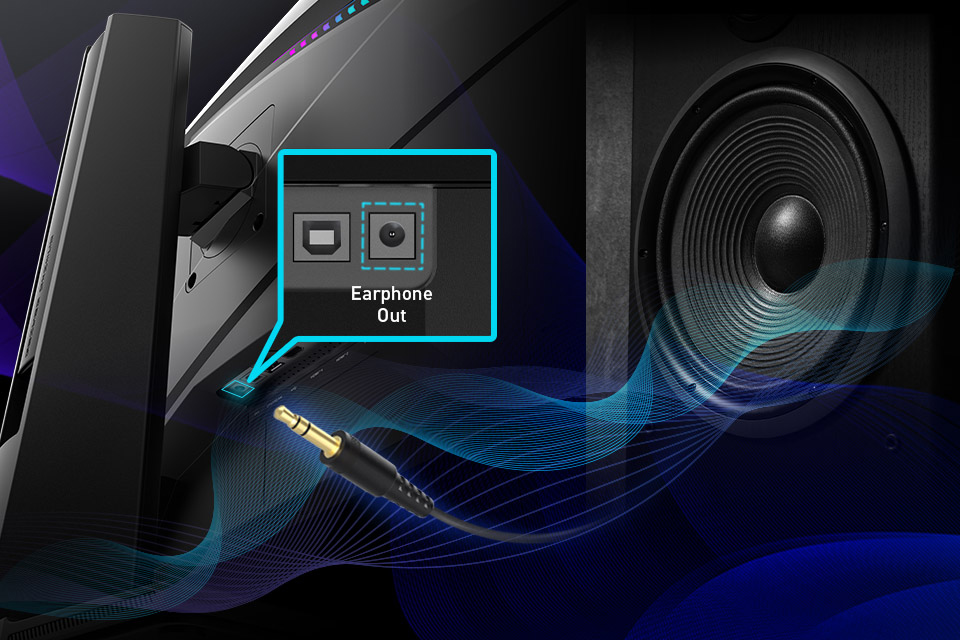
On some MSI monitors, like the newly-launched range of QD-OLEDs, you’ll find a headphone-out port on the back. You can use this to connect a regular 3.5mm audio cable to your external speakers.
When your console is plugged into your monitor via HDMI, you should get audio through your speakers.
Connect Your Console to a Gaming Monitor the Right Way
1. Plug the HDMI 2.1 cable into your MSI monitor and Gaming Console (in this example, we’ll go with a PlayStation 5).
2. Next, select the correct input (HDMI) on your monitor if it hasn’t automatically switched to the correct one.

3. You should be able to see your PS5’s UI on your monitor without any additional hitches.
4. Now, let’s get audio going (assuming you’re connecting to external speakers).
5. Connect a 3.5mm audio cable (male) from your speaker to your monitor’s Earphone Out, and you should get game audio to your external speakers.
6. If you aren’t sure what sort of audio setup you have, head into your PS5’s settings and select “Sound”.
7. Make sure your Output Device is set to HDMI, and you should be good to go!