How to Choose the Perfect Gaming PC and Monitor with “Find My Favor”
Desktops ,
Monitors
When you want to play a popular new game but find your current PC can’t run it smoothly, building or upgrading your system becomes necessary. However, keeping up with the latest hardware can be overwhelming, especially since new CPUs, GPUs, memory, and monitors are released every year. Researching all these components takes a lot of time. Fortunately, there’s an easy solution. The MSI Game Benchmark Tool, called “Find My Favor,” helps you quickly pick the best gaming PC and monitor for your favorite games. With just a few clicks and by selecting the game you want to play, it recommends the perfect setup tailored for you. Follow along to learn how to use this handy tool!
Select the game or category first
When you visit the MSI official website, navigate to the “Game Benchmark” section under the Monitor/Desktops category. This is where you can access the “Find My Favor” tool. Alternatively, you can use the tool directly by clicking the link below.
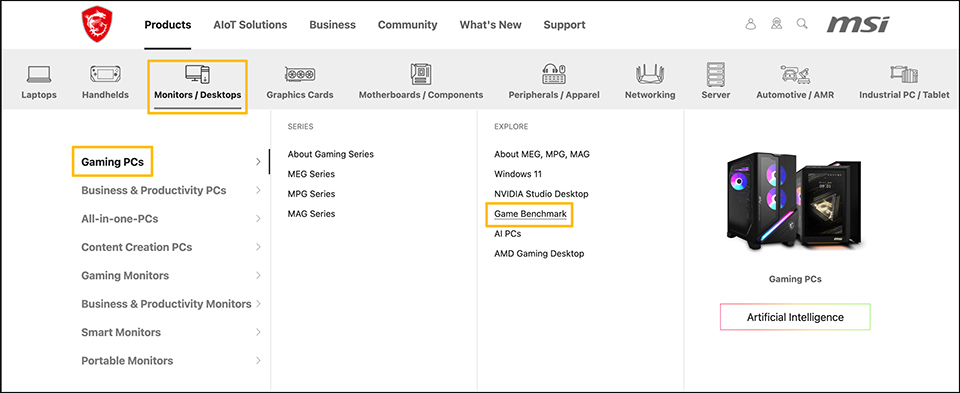
In MSI Official product page, “Game Benchmark” is the entrance to Find My Faovr. Or you can also visit shortcut link here. Find My Favor: https://www.msi.com/Landing/find_my_favor
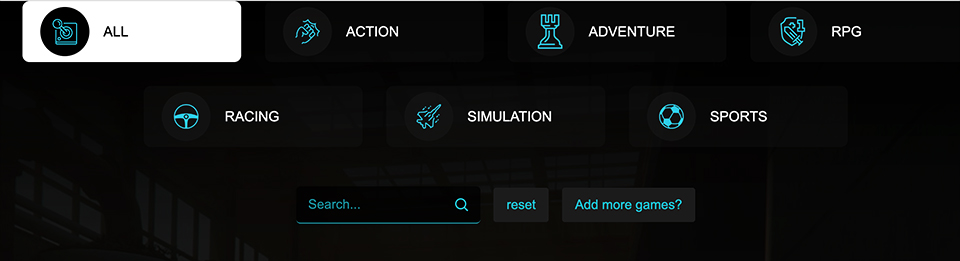
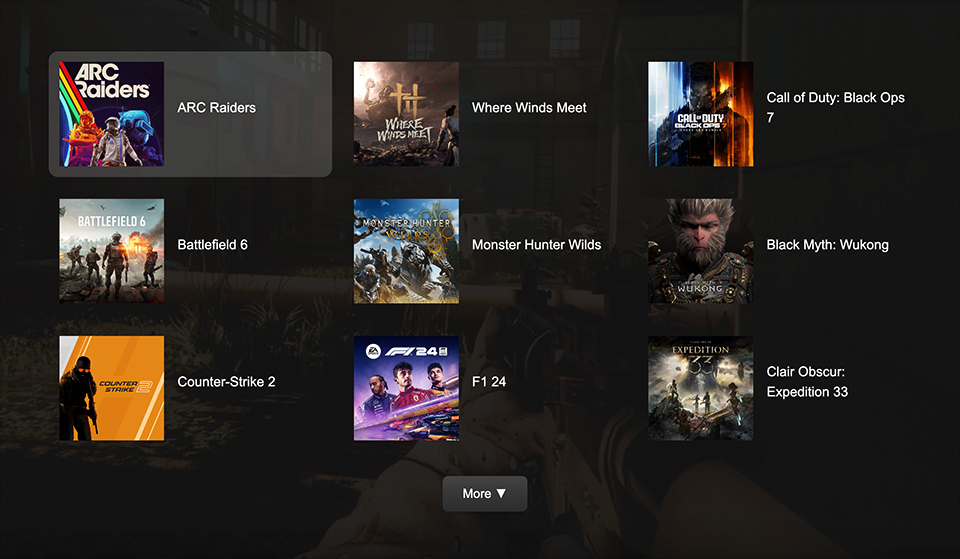
On the main page, you’ll see different game categories. If you don’t know the exact game name, browsing by category is a quick way to find it. You can also type the game name directly in the search box. If you can’t find the game you want by either method, click on “Add more games?” to submit a request. We will test the game and update the results for you.
Once you’ve found the game, click the game title to view detailed information about the recommended setup. This will help you understand how the game will run on the suggested gaming PC and monitor.
Also, when searching by category, the system only shows a limited number of games per page. Click “More” to see additional game titles.
Use the filter to find the setup that suits you best
MSI gaming PCs come with different CPU and GPU options. You can use the filter to select your preferred platform and choose the game resolution you want to play at. This will show you how the game performs under different conditions. If you find more than two models you like, you can add them to the compare zone, where the system will display a side-by-side comparison of all your selected models.
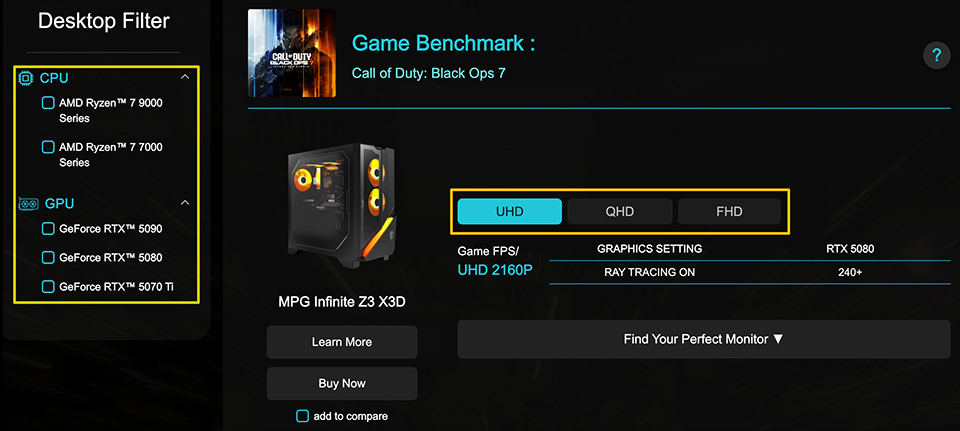
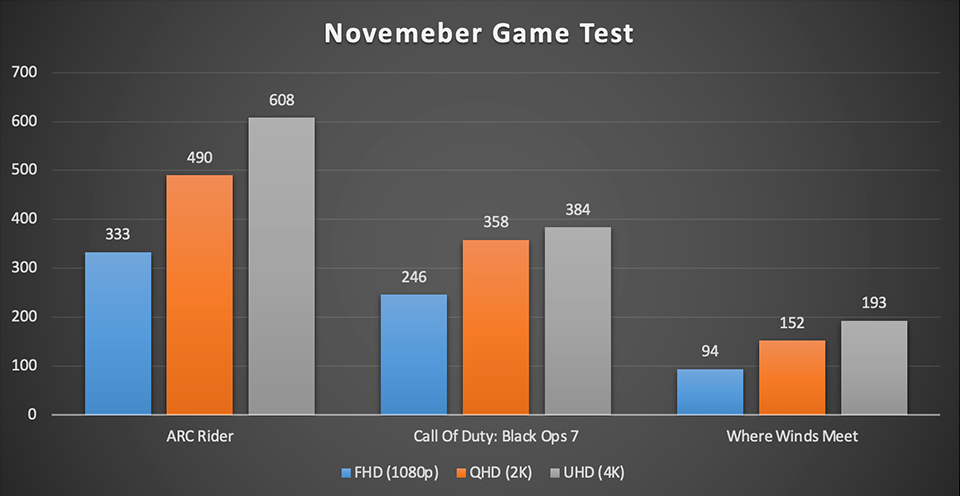
The filter helps you search for your preferred gaming desktop, while the resolution option shows how the game performs at 4K, 2K, and 1080p. Afterward, click “Find Your Perfect Monitor” to see the best monitor options matched to your setup.
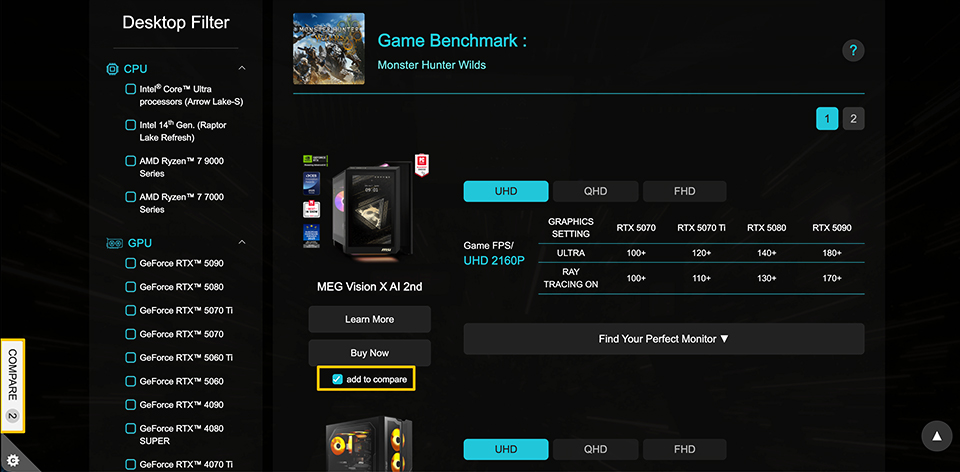
To compare models, find the ones you want and click the “Add to compare” button located on the side panel in the left window. The system will then display a comparison list, making it easy for you to review and compare the key features side by side, just like in the picture below.
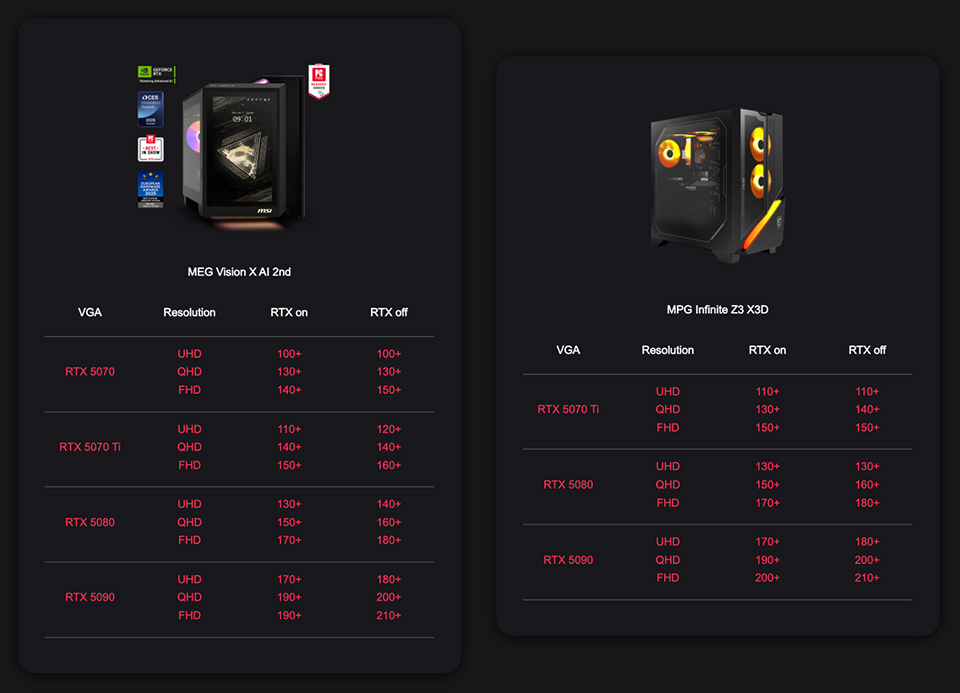
For the best gaming experience, we configured the test conditions as follows:
- DLSS and FSR will be enabled when supported by the game.
- Ray Tracing will be enabled when supported by the game.
- Graphics settings are always set to Ultra or the maximum level.
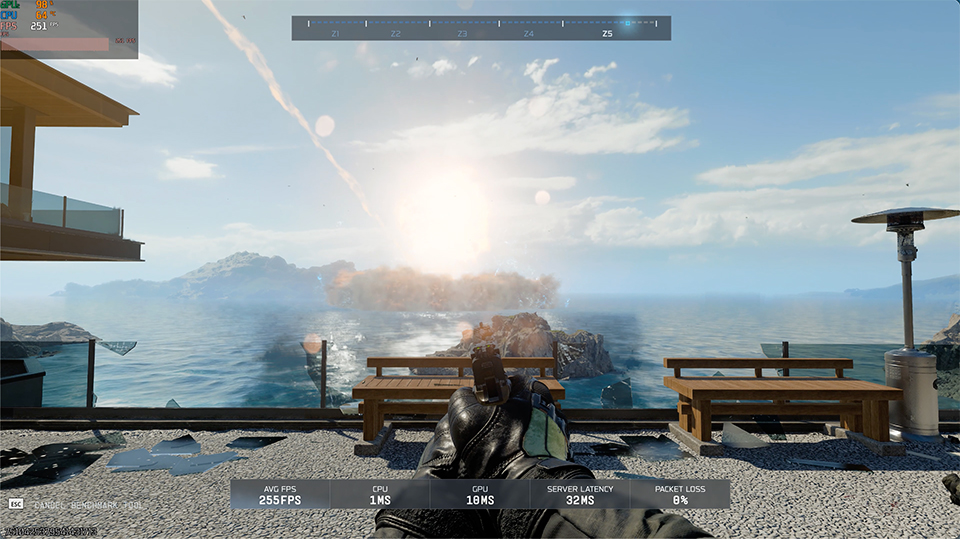
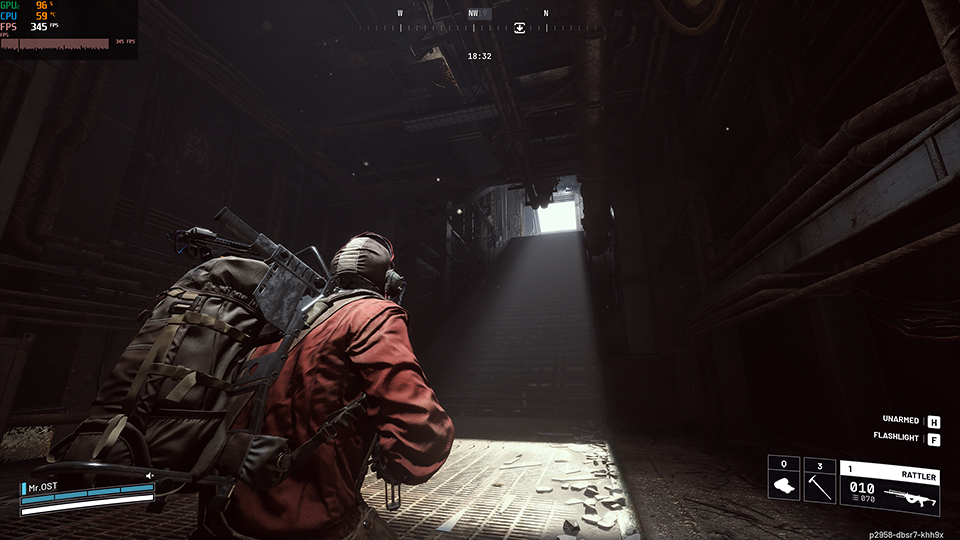
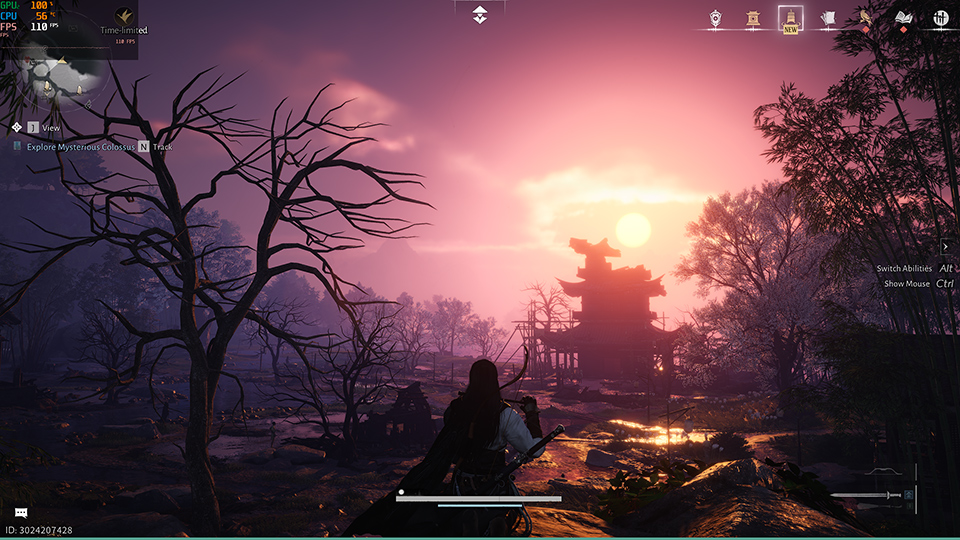
With these settings, you should be able to find the perfect gaming PC and monitor for your needs. If you still have trouble choosing the right setup for yourself, family, or friends, just visit the Find My Favor tool—the latest game benchmark platform from MSI. We keep the test results updated with popular games like Battlefield 6, ARC Rider, and Call of Duty: Black Ops 7. You can even request games you want us to test, and we will add them to the benchmark database for you.
Game Benchmark Finder is now live!
Curious how MSI pre-built desktops perform in your favorite games? Visit Game Benchmark Finder to explore real-world FPS results across various titles and find the perfect MSI pre-built pc that suits your needs.