A Look at MSI Power Link: Conquering Convenience
Desktops ,
Monitors
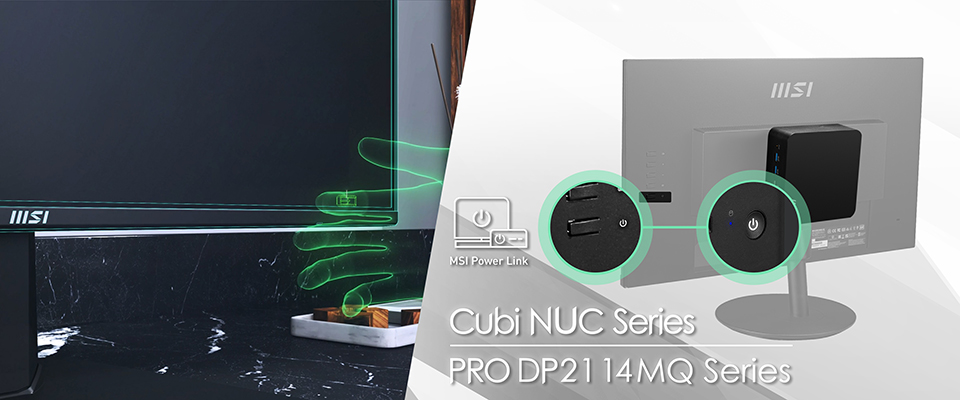
Today's technology demands convenience and efficiency. MSI has introduced a new feature called MSI Power Link. This feature enables the power button on selected MSI monitors to turn on the MSI Cubi NUC and the PRO DP21 14MQ series mini PCs. We will explore the advantages of this technology and emphasize how this feature is particularly beneficial when mounting these mini PCs behind a monitor.
Understanding the MSI Power Link:
Traditionally, turning on a desktop setup involves powering on the monitor and the PC separately. However, MSI Power Link aims to simplify this process. MSI Power Link is an innovative feature that aims to streamline the power management of specific MSI mini PCs. Essentially, this function establishes a close relationship between an MSI-selected monitor and compatible mini PC models, such as the MSI Cubi NUC and PRO DP21 14MQ series. The main purpose of MSI Power Link is to enable users to power on their mini PC using the power button on their monitor, eliminating the need to use a separate power button on the PC itself.
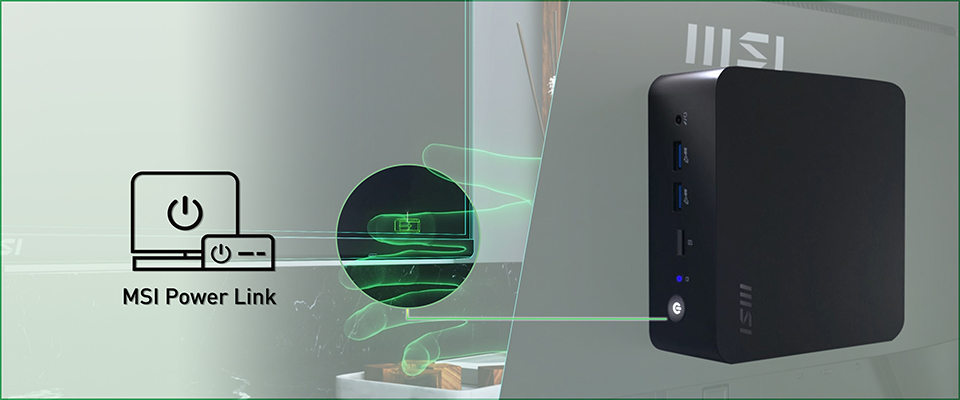
This simple concept has significant implications for user convenience, workspace organization, and overall system integration. By utilizing the power button on the monitor, MSI has efficiently simplified the process of managing multiple devices, thereby creating a more cohesive and user-friendly computing environment.
Benefits of MSI Power Link
The MSI Power Link provides several benefits for users, especially those with mounted mini PCs:
Start-up Simplified: The Power Link feature allows you to start up your entire system with just one press of the monitor's power button. This is especially useful for users with a clean desk setup where the mini PC might be hidden away or mounted behind the monitor, making it hard to reach the power button directly.
Space Optimization: MSI Power Link eliminates the need to access the mini PC's power button directly, allowing for more flexible placement options. Users can mount the Cubi NUC or PRO DP21 14MQ series mini PC behind the monitor or in other discrete locations without worrying about easy access to the power button. This integration not only saves desk space, but also provides a cleaner and more organized workspace. MSI Power Link is particularly beneficial in environments where space is limited, such as small offices, home offices, educational settings, retail shops, or home entertainment setups.
Professional Aesthetics:
Businesses and professionals can keep things looking slick by hiding the mini PC behind the monitor. It's easy to control the power, and it makes the workspace look clean and professional. This is especially important in places where customers come in or in offices where appearance really matters.
Power Management: MSI Power Link can also help improve energy efficiency by integrating the power management of the monitor and the PC. This makes it easier to ensure that both devices are powered off when not in use, reducing unnecessary energy consumption and contributing to cost savings.
Accessibility: MSI Power Link improves accessibility for users with mobility issues or in situations where the mini PC is mounted in a hard-to-reach location. The ability to control the PC's power state from the easily accessible monitor button can be a significant advantage for these users.
Set up the MSI Power Link
(a) Checking Hardware Compatibility:
Make sure you have a compatible MSI mini PC (Cubi NUC or PRO DP21 14MQ series) and an MSI-selected monitor that supports the Power Link function. You can find the list of compatible devices at the end of this article.
(b) Cable Connection:
Connect the mini PC to the monitor using an HDMI cable ( version 1.2 or higher). If you're using the Cubi NUC series mini PC, make sure to use the HDMI port labeled "Power Link." Also, ensure that all other required cables (power, keyboard, mouse, etc.) are properly connected.
(c) Monitor Settings:
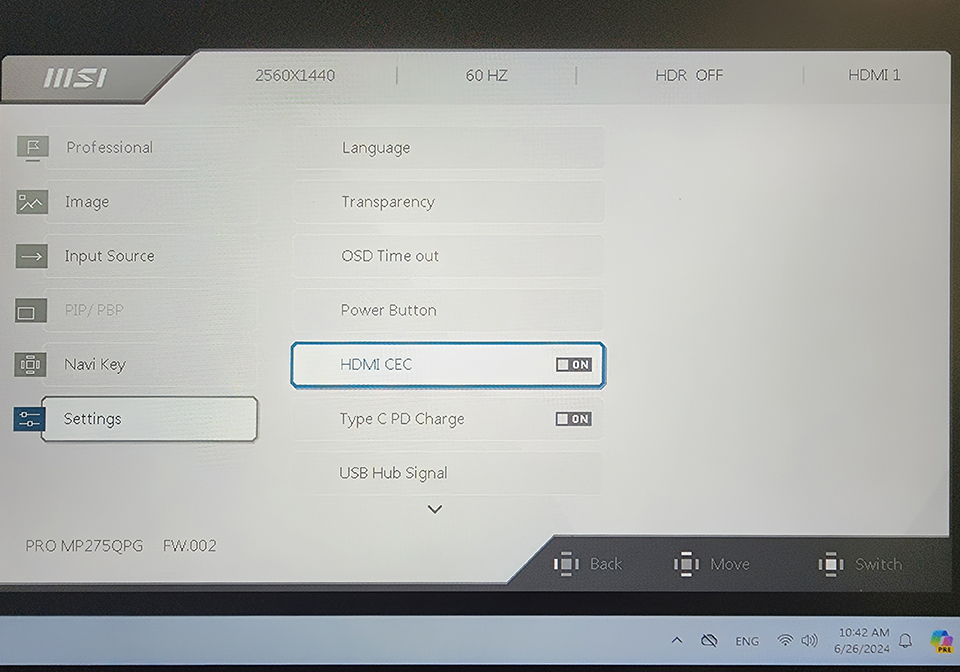
Check the monitor's on-screen display (OSD) menu, go to "Settings" and enable the "HDMI CEC" function.
(d) Launch the MSI Power Link:
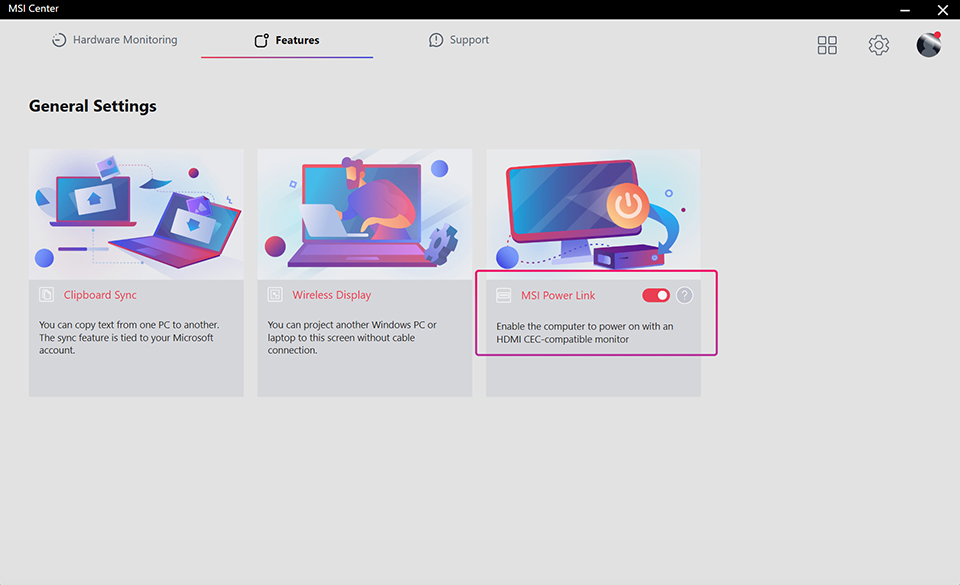
1. Open the "MSI Center" software.
2. Click on the "Features" button located at the top.
3. Within the "Features" section, click on "General Settings" and locate the "MSI Power Link" option.
4. Ensure that the "MSI Power Link" is enabled. When enabled, the button turns red.
(e) Adjusting the power button settings in Windows:
1. Open "Control Panel" and find "Power Options."
2. Click on "Choose what the power buttons do" located on the top-left side.
3. Select "Shut down" or "Sleep" from the Power and Sleep button settings. This will define the reaction of the power button of the monitor.
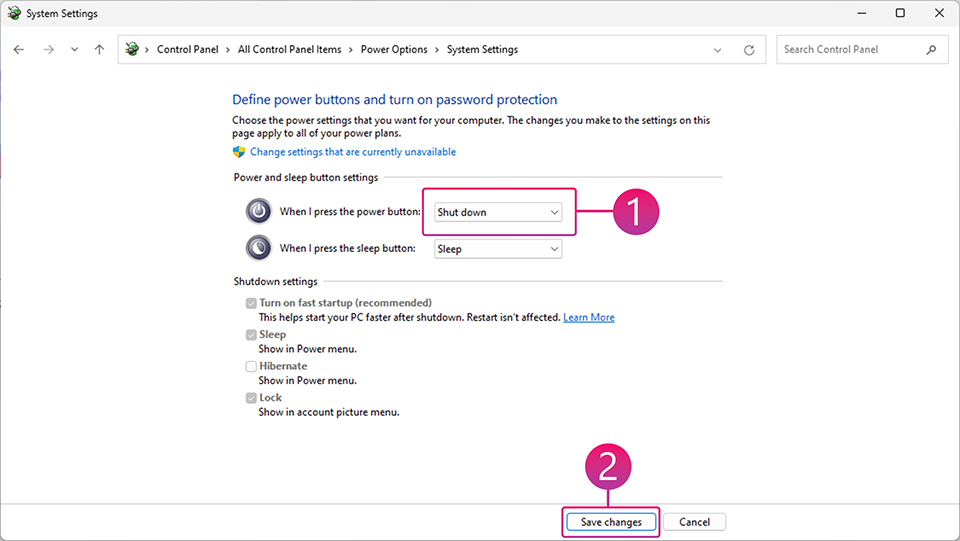
It's all set! Enjoy the benefits and the convenience of the MSI Power Link now.
Compatible Devices:
In order to make the most of MSI Power Link, it's important to know which devices are able to use this feature. Currently, MSI Power Link is intended to work with the following hardware:
- Mini PCs:
Cubi NUC 1M
Cubi NUC 1MG
Cubi NUC 13MQ
Cubi NUC 13MQG
PRO DP21 14MQ
PRO DP21 14MQG
Cubi NUC 1MG
Cubi NUC 13MQ
Cubi NUC 13MQG
PRO DP21 14MQ
PRO DP21 14MQG
- Monitors:
Modern MD342CQP
Modern MD342CQPW
Modern MD272UPHG
Modern MD272UPHW
Modern MD272UPSW
PRO MP273U
PRO MP273QP E2
PRO MP275QPDG
PRO MP275QPG
PRO MP275QG
PRO MP275 E2
PRO MP271A E2
PRO MP272PMG
PRO MP251 E2
PRO MP251W E2
PRO MP252 E2
PRO MP252L
PRO MP2412W
PRO MP242A E2
PRO MP242L
PRO MP242PMG
PRO MP223 E2
Modern MD342CQPW
Modern MD272UPHG
Modern MD272UPHW
Modern MD272UPSW
PRO MP273U
PRO MP273QP E2
PRO MP275QPDG
PRO MP275QPG
PRO MP275QG
PRO MP275 E2
PRO MP271A E2
PRO MP272PMG
PRO MP251 E2
PRO MP251W E2
PRO MP252 E2
PRO MP252L
PRO MP2412W
PRO MP242A E2
PRO MP242L
PRO MP242PMG
PRO MP223 E2
It's important to note that not all MSI monitors may support this feature yet. So, it's important for users to verify compatibility when purchasing or setting up their systems. The specific models of compatible monitors may vary, and we will expand this list in the future as we continue to develop and refine this technology.
MSI Power Link may appear to be a minor feature, but it provides significant convenience for users who value clean setups, streamlined workflows, and minimalist aesthetics, especially those who mount their mini PCs. By using the existing power button on the monitor, MSI Power Link makes the PC startup experience more intuitive and user-friendly.